Org Mode - Organize Your Life In Plain Text!
Table of Contents
- 1. How To Use This Document
- 2. License
- 3. Change History - What's new
- 4. Getting Started
- 5. Tasks and States
- 6. Adding New Tasks Quickly with Org Capture
- 7. Refiling Tasks
- 8. Custom agenda views
- 9. Time Clocking
- 10. Time reporting and tracking
- 11. Tags
- 12. Handling Notes
- 13. Handling Phone Calls
- 14. GTD stuff
- 15. Archiving
- 16. Publishing and Exporting
- 17. Reminders
- 18. Productivity Tools
- 18.1. Abbrev-mode and Skeletons
- 18.2. Focus On Current Work
- 18.3. Tuning the Agenda Views
- 18.4. Checklist handling
- 18.5. Backups
- 18.6. Handling blocked tasks
- 18.7. Org Task structure and presentation
- 18.8. Attachments
- 18.9. Deadlines and Agenda Visibility
- 18.10. Exporting Tables to CSV
- 18.11. Minimize Emacs Frames
- 18.12. Logging stuff
- 18.13. Limiting time spent on tasks
- 18.14. Habit Tracking
- 18.15. Habits only log DONE state changes
- 18.16. Auto revert mode
- 18.17. Handling Encryption
- 18.18. Speed Commands
- 18.19. Org Protocol
- 18.20. Require a final newline when saving files
- 18.21. Insert inactive timestamps and exclude from export
- 18.22. Return follows links
- 18.23. Highlight clock when running overtime
- 18.24. Meeting Notes
- 18.25. Remove Highlights after changes
- 18.26. Getting up to date org-mode info documentation
- 18.27. Prefer future dates or not?
- 18.28. Automatically change list bullets
- 18.29. Remove indentation on agenda tags view
- 18.30. Fontify source blocks natively
- 18.31. Agenda persistent filters
- 18.32. Add tags for flagged entries
- 18.33. Mail links open compose-mail
- 18.34. Composing mail from org mode subtrees
- 18.35. Use smex for M-x ido-completion
- 18.36. Use Emacs bookmarks for fast navigation
- 18.37. Using org-mime to email
- 18.38. Remove multiple state change log details from the agenda
- 18.39. Drop old style references in tables
- 18.40. Use system settings for file-application selection
- 18.41. Use the current window for the agenda
- 18.42. Delete IDs when cloning
- 18.43. Cycling plain lists
- 18.44. Showing source block syntax highlighting
- 18.45. Inserting Structure Template Blocks
- 18.46. NEXT is for tasks
- 18.47. Startup in folded view
- 18.48. Allow alphabetical list entries
- 18.49. Using orgstruct mode for mail
- 18.50. Using flyspell mode to reduce spelling errors
- 18.51. Preserving source block indentation
- 18.52. Prevent editing invisible text
- 18.53. Use utf-8 as default coding system
- 18.54. Keep clock durations in hours
- 18.55. Create unique IDs for tasks when linking
- 19. Things I Don't Use (Anymore)
- 20. Using Git for Automatic History, Backups, and Synchronization
Org-mode is a fabulous organizational tool originally built by Carsten Dominik that operates on plain text files. Org-mode is part of Emacs.
1. How To Use This Document
This document assumes you've had some exposure to org-mode already so concepts like the agenda, capture mode, etc. won't be completely foreign to you. More information about org-mode can be found in the Org-Mode Manual and on the Worg Site.
I have been using org-mode as my personal information manager for
years now. I started small with just the default TODO and DONE
keywords. I added small changes to my workflow and over time it
evolved into what is described by this document.
I still change my workflow and try new things regularly. This document describes mature workflows in my current org-mode setup. I tend to document changes to my workflow 30 days or more after implementing them (assuming they are still around at that point) so that the new workflow has a chance to mature.
Some of the customized Emacs settings described in this document are set at their default values. This explicitly shows the setting for important org-mode variables used in my workflow and to keep my workflow behaviour stable in the event that the default value changes in the future.
This document is available as an org file which you can load in Emacs
and tangle with C-c C-v C-t which will create org-mode.el in the
same directory as the org-mode.org file. This will extract all of the
elisp examples in this document into a file you can include in your
.emacs file.
2. License
Copyright (C)  2013-2026  Bernt Hansen.
Permission is granted to copy, distribute and/or modify this document
under the terms of the GNU Free Documentation License, Version 1.3
or any later version published by the Free Software Foundation;
with no Invariant Sections, no Front-Cover Texts, and no Back-Cover Texts.

Code in this document is free software: you can redistribute it
and/or modify it under the terms of the GNU General Public
License as published by the Free Software Foundation, either
version 3 of the License, or (at your option) any later version.

This code is distributed in the hope that it will be useful,
but WITHOUT ANY WARRANTY; without even the implied warranty of
MERCHANTABILITY or FITNESS FOR A PARTICULAR PURPOSE.  See the
GNU General Public License for more details.
This document http://doc.norang.ca/org-mode.html (either in its HTML format or in its Org format) is licensed under the GNU Free Documentation License version 1.3 or later (http://www.gnu.org/copyleft/fdl.html).
The code examples and CSS stylesheets are licensed under the GNU General Public License v3 or later (http://www.gnu.org/licenses/gpl.html).
3. Change History - What's new
This is version 2023.05-1-ga8dff of this document. This
document is created using the publishing features of org-mode 9.7.15.
The source for this document can be found as a plain text org file. I try to update this document about every six months.
The change history for this document can be found at git://git.norang.ca/org-mode-doc.git.
This document is currently being reworked for recent versions of org-mode and publishing tools used by this document.
4. Getting Started
Getting started with org-mode is really easy. Org-mode is included in
modern versions of Emacs. You can update to newer versions of org-mode
with packages from elpa.
I use currently use org-mode provided in the package system within emacs.
4.1. Org-Mode Setup
The following setup in my .emacs enables org-mode for org buffers.
org-mode is the default mode for .org, .org_archive, .org_archive_20??
files.
;;;
;;; Org Mode
;;;
(add-to-list 'load-path (expand-file-name "~/git/org-mode/lisp"))
(add-to-list 'auto-mode-alist '("\\.org\\(\\|_archive\\(_20[0-9][0-9]\\)?\\)$" . org-mode))
(require 'org)
;;
;; Standard key bindings
(global-set-key "\C-cl" 'org-store-link)
(global-set-key "\C-ca" 'org-agenda)
(global-set-key "\C-cb" 'org-iswitchb)
(global-set-key "\C-c " 'org-table-blank-field)
That's all you need to get started using headlines and lists in org-mode.
The rest of this document describes customizations I use in my setup, how I structure org-mode files, and other changes to fit the way I want org-mode to work.
4.2. Organizing Your Life Into Org Files
Tasks are separated into logical groupings or projects. Use separate org files for large task groupings and subdirectories for collections of files for multiple projects that belong together.
Here are sample files that I use.
The following org files collect non-work related tasks:
| Filename | Description |
|---|---|
| todo.org | Personal tasks and things to keep track of |
| gsoc2009.org | Google Summer of Code stuff for 2009 |
| farm.org | Farm related tasks |
| mark.org | Tasks related to my son Mark |
| org.org | Org-mode related tasks |
| git.org | Git related tasks |
The following org-file collects org capture notes and tasks:
| Filename | Description |
|---|---|
| refile.org | Capture task bucket |
The following work-related org-files keep my business notes (using fictitious client names)
| Filename | Description |
|---|---|
| norang.org | Norang tasks and notes |
| XYZ.org | XYZ Corp tasks and notes |
| ABC.org | ABC Ltd tasks |
| ABC-DEF.org | ABC Ltd tasks for their client DEF Corp |
| ABC-KKK.org | ABC Ltd tasks for their client KKK Inc |
| YYY.org | YYY Inc tasks |
Org-mode is great for dealing with multiple clients and client projects. An org file becomes the collection of projects, notes, etc. for a single client or client-project.
Client ABC Ltd. has multiple customer systems that I work on. Separating the tasks for each client-customer into separate org files helps keep things logically grouped and since clients come and go this allows entire org files to be added or dropped from my agenda to keep only what is important visible in agenda views.
Other org files are used for publishing only and do not contribute to the agenda. See Publishing and Exporting for more details.
4.3. Agenda Setup
The agenda collects details from various files and displays them in with
a calendar or list of tasks. The files contributing to the agenda are
stored in the org-agenda-files variable. org-mode manages the
org-agenda-files variable automatically using C-c [ and C-c ] to
add and remove files respectively.
4.4. Org File Structure
Most of my org files are set up with level 1 headings as main categories only. Tasks and projects normally start as level 2.
Here are some examples of my level 1 headings in
todo.org:
Special Dates
Includes level 2 headings for
- Birthdays
- Anniversaries
- Holidays
- Finances
- Health and Recreation
- House Maintenance
- Lawn and Garden Maintenance
- Notes
- Tasks
- Vehicle Maintenance
- Passwords
norang.org:
- System Maintenance
- Payroll
- Accounting
- Finances
- Hardware Maintenance
- Tasks
- Research and Development
- Notes
- Purchase Order Tracking
- Passwords
Each of these level 1 tasks normally has a property drawer
specifying the category for any tasks in that tree. Level 1 headings
are set up like this:
* Health and Recreation
  :PROPERTIES:
  :CATEGORY: Health
  :END:
  ...
* House Maintenance
  :PROPERTIES:
  :CATEGORY: House
  :END:
4.5. Key bindings
I live in the agenda.
I have the following custom key bindings set up for my emacs (sorted by frequency).
| Key | For | Used |
|---|---|---|
| C-c a | Enter Agenda | Very Often |
| F11 | Goto currently clocked item | Very Often |
| C-c c | Capture a task | Very Often |
| C-F11 | Clock in a task (show menu with prefix) | Often |
| f5 | Show todo items for this subtree | Often |
| S-f5 | Widen | Often |
| f9 b | Quick access to bbdb data | Often |
| f9 c | Calendar access | Often |
| C-c l | Store a link for retrieval with C-c C-l | Often |
| C-S-f12 | Save buffers and publish current project | Sometimes |
| f8 | Go to next org file in org-agenda-files | Sometimes |
| f9 t | Insert inactive timestamp | Sometimes |
| f9 v | Toggle visible mode (for showing/editing links) | Sometimes |
| C-f9 | Previous buffer | Sometimes |
| C-f10 | Next buffer | Sometimes |
| C-x n r | Narrow to region | Sometimes |
| f9 I | Punch Clock In | Sometimes |
| f9 O | Punch Clock Out | Sometimes |
| f9 o | Switch to org scratch buffer | Sometimes |
| f9 s | Switch to scratch buffer | Sometimes |
| C-c b | Switch to org file | Sometimes |
| f7 | Toggle line truncation/wrap | Rare |
| f9 T | Toggle insert inactive timestamp | Rare |
Here is the keybinding setup in lisp:
;; Custom Key Bindings
(global-set-key (kbd "<f5>") 'bh/org-todo)
(global-set-key (kbd "<S-f5>") 'bh/widen)
(global-set-key (kbd "<f7>") 'bh/set-truncate-lines)
(global-set-key (kbd "<f8>") 'org-cycle-agenda-files)
(global-set-key (kbd "<f9> c") 'calendar)

(global-set-key (kbd "<f9> I") 'bh/punch-in)
(global-set-key (kbd "<f9> O") 'bh/punch-out)

(global-set-key (kbd "<f9> o") 'bh/make-org-scratch)

(global-set-key (kbd "<f9> s") 'bh/switch-to-scratch)

(global-set-key (kbd "<f9> t") 'bh/insert-inactive-timestamp)
(global-set-key (kbd "<f9> T") 'bh/toggle-insert-inactive-timestamp)

(global-set-key (kbd "<f9> v") 'visible-mode)
(global-set-key (kbd "<f9> l") 'org-toggle-link-display)
(global-set-key (kbd "<f9> SPC") 'bh/clock-in-last-task)
(global-set-key (kbd "C-<f9>") 'previous-buffer)
(global-set-key (kbd "M-<f9>") 'org-toggle-inline-images)
(global-set-key (kbd "C-x n r") 'narrow-to-region)
(global-set-key (kbd "C-<f10>") 'next-buffer)
(global-set-key (kbd "<f11>") 'org-clock-goto)
(global-set-key (kbd "C-<f11>") 'org-clock-in)
(global-set-key (kbd "C-s-<f12>") 'bh/save-then-publish)
(global-set-key (kbd "C-c c") 'org-capture)

(defun bh/set-truncate-lines ()
  "Toggle value of truncate-lines and refresh window display."
  (interactive)
  (setq truncate-lines (not truncate-lines))
  ;; now refresh window display (an idiom from simple.el):
  (save-excursion
    (set-window-start (selected-window)
                      (window-start (selected-window)))))

(defun bh/make-org-scratch ()
  (interactive)
  (find-file "/tmp/publish/scratch.org")
  (gnus-make-directory "/tmp/publish"))

(defun bh/switch-to-scratch ()
  (interactive)
  (switch-to-buffer "*scratch*"))
The main reason I have special key bindings (like F9, and F11) is
so that the keys work in any mode. If I'm in the Emacs scratch buffer
then C-u C-c C-x C-i doesn't work, but the C-F11 key combination
does and this saves me time since I don't have to visit an org-mode
buffer first just to clock in a recent task.
5. Tasks and States
I use a common set of TODO keywords for most of my org files.
#+SEQ_TODO: TODO(t) NEXT(n) | DONE(d!)
#+SEQ_TODO: WAITING(w@/!) HOLD(h@/!) | CANCELLED(c@)
CANCELLED and DONE are final completed states.
All other states are open active todo states.
The only exception to this is this document :) since I don't want
org-mode hiding the TODO keywords in exports when it appears in
headlines.
I have set up a dummy #+SEQ_TODO: FIXME FIXED entry at the
top of this file just to leave my TODO keyword untouched in this
document.
5.1. TODO keywords
Todo keywords on headlines are tasks and the todo keyword defines the state these tasks are in.
I use a light colour theme in emacs. I find this easier to read on bright sunny days.
Here are my TODO state colour settings:
(setq org-todo-keyword-faces
      (quote (("TODO" :foreground "red" :weight bold)
              ("NEXT" :foreground "blue" :weight bold)
              ("DONE" :foreground "forest green" :weight bold)
              ("WAITING" :foreground "orange" :weight bold)
              ("HOLD" :foreground "magenta" :weight bold)
              ("CANCELLED" :foreground "forest green" :weight bold))))
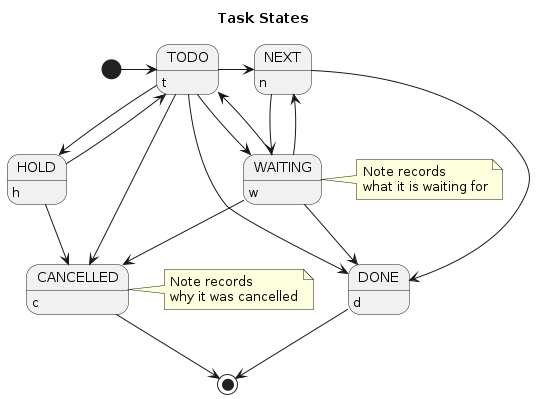
5.1.1. Task States
Tasks go through the sequence TODO -> DONE.
The following diagram shows the possible state transitions for a task.
5.2. Fast Todo Selection
Fast todo selection allows changing from any task todo state to any other state directly by selecting the appropriate key from the fast todo selection key menu. This is a great feature!
(setq org-use-fast-todo-selection t)
Changing a task state is done with C-c C-t KEY
where KEY is the appropriate fast todo state selection key as defined in org-todo-keywords.
The setting
(setq org-treat-S-cursor-todo-selection-as-state-change nil)
allows changing todo states with S-left and S-right skipping all of the normal processing when entering or leaving a todo state. This cycles through the todo states but skips setting timestamps and entering notes which is very convenient when all you want to do is fix up the status of an entry.
5.3. TODO state triggers
I have a few triggers that automatically assign tags to tasks based on
state changes. If a task moves to CANCELLED state then it gets a
CANCELLED tag. Moving a CANCELLED task back to TODO removes the
CANCELLED tag. These are used for filtering tasks in agenda views
which I'll talk about later.
The triggers break down to the following rules:
- Moving a task to
CANCELLEDadds aCANCELLEDtag - Moving a task to
WAITINGadds aWAITINGtag - Moving a task to
HOLDaddsWAITINGandHOLDtags - Moving a task to a done state removes
WAITINGandHOLDtags - Moving a task to
TODOremovesWAITING,CANCELLED, andHOLDtags - Moving a task to
NEXTremovesWAITING,CANCELLED, andHOLDtags - Moving a task to
DONEremovesWAITING,CANCELLED, andHOLDtags
The tags are used to filter tasks in the agenda views conveniently.
(setq org-todo-state-tags-triggers
      (quote (("CANCELLED" ("CANCELLED" . t))
              ("WAITING" ("WAITING" . t))
              ("HOLD" ("WAITING") ("HOLD" . t))
              (done ("WAITING") ("HOLD"))
              ("TODO" ("WAITING") ("CANCELLED") ("HOLD"))
              ("NEXT" ("WAITING") ("CANCELLED") ("HOLD"))
              ("DONE" ("WAITING") ("CANCELLED") ("HOLD")))))
6. Adding New Tasks Quickly with Org Capture
Org Capture mode replaces remember mode for capturing tasks and notes.
To add new tasks efficiently I use a minimal number of capture
templates. I used to have lots of capture templates, one for each
org-file. I'd start org-capture with C-c c and then pick a template
that filed the task under * Tasks in the appropriate file.
I found I still needed to refile these capture tasks again to the correct location within the org-file so all of these different capture templates weren't really helping at all. Since then I've changed my workflow to use a minimal number of capture templates – I create the new task quickly and refile it once. This also saves me from maintaining my org-capture templates when I add a new org file.
6.1. Capture Templates
When a new task needs to be added I categorize it into one of a few things:
- A phone call (p)
- A meeting (m)
- An email I need to respond to (r)
- A new task (t)
- A new note (n)
- An interruption (j)
- A new habit (h)
and pick the appropriate capture task.
Here is my setup for org-capture
(setq org-directory "~/git/org")
(setq org-default-notes-file "~/git/org/refile.org")

;; I use C-c c to start capture mode
(global-set-key (kbd "C-c c") 'org-capture)

;; Capture templates for: TODO tasks, Notes, appointments, phone calls, meetings, and org-protocol
(setq org-capture-templates
      (quote (("t" "todo" entry (file "~/git/org/refile.org")
               "* TODO %?\n%U\n%a\n" :clock-in t :clock-resume t)
              ("r" "respond" entry (file "~/git/org/refile.org")
               "* NEXT Respond to %:from on %:subject\nSCHEDULED: %t\n%U\n%a\n" :clock-in t :clock-resume t :immediate-finish t)
              ("n" "note" entry (file "~/git/org/refile.org")
               "* %? :NOTE:\n%U\n%a\n" :clock-in t :clock-resume t)
              ("j" "Journal" entry (file+datetree "~/git/org/diary.org")
               "* %?\n%U\n" :clock-in t :clock-resume t)
              ("w" "org-protocol" entry (file "~/git/org/refile.org")
               "* TODO Review %c\n%U\n" :immediate-finish t)
              ("m" "Meeting" entry (file "~/git/org/refile.org")
               "* MEETING with %? :MEETING:\n%U" :clock-in t :clock-resume t)
              ("p" "Phone call" entry (file "~/git/org/refile.org")
               "* PHONE %? :PHONE:\n%U" :clock-in t :clock-resume t)
              ("h" "Habit" entry (file "~/git/org/refile.org")
               "* NEXT %?\n%U\n%a\nSCHEDULED: %(format-time-string \"%<<%Y-%m-%d %a .+1d/3d>>\")\n:PROPERTIES:\n:STYLE: habit\n:REPEAT_TO_STATE: NEXT\n:END:\n"))))
Capture mode now handles automatically clocking in and out of a
capture task. This all works out of the box now without special hooks.
When I start a capture mode task the task is clocked in as specified
by :clock-in t and when the task is filed with C-c C-c the clock
resumes on the original clocking task.
The quick clocking in and out of capture mode tasks (often it takes less than a minute to capture some new task details) can leave empty clock drawers in my tasks which aren't really useful. Since I remove clocking lines with 0:00 length I end up with a clock drawer like this:
* TODO New Capture Task
  :LOGBOOK:
  :END:
  [2010-05-08 Sat 13:53]
I have the following setup to remove these empty LOGBOOK drawers if
they occur.
;; Remove empty LOGBOOK drawers on clock out
(defun bh/remove-empty-drawer-on-clock-out ()
  (interactive)
  (save-excursion
    (beginning-of-line 0)
    (org-remove-empty-drawer-at "LOGBOOK" (point))))

(add-hook 'org-clock-out-hook 'bh/remove-empty-drawer-on-clock-out 'append)
6.2. Separate file for Capture Tasks
I have a single org file which is the target for my capture templates.
I store notes, tasks, phone calls, and org-protocol tasks in
refile.org. I used to use multiple files but found that didn't
really have any advantage over a single file.
Normally this file is empty except for a single line at the top which
creates a REFILE tag for anything in the file.
The file has a single permanent line at the top like this
#+FILETAGS: REFILE
6.3. Capture Tasks is all about being FAST
Okay I'm in the middle of something and oh yeah - I have to remember to do that. I don't stop what I'm doing. I'm probably clocking a project I'm working on and I don't want to lose my focus on that but I can't afford to forget this little thing that just came up.
So what do I do? Hit C-c c to start capture mode and select t
since it's a new task and I get a buffer like this:
* TODO
  [2010-08-05 Thu 21:06]

  Capture Tasks is all about being FAST
Enter the details of the TODO item and C-c C-c to file it away in
refile.org and go right back to what I'm really working on secure in
the knowledge that that item isn't going to get lost and I don't have
to think about it anymore at all now.
The amount of time I spend entering the captured note is clocked. The capture templates are set to automatically clock in and out of the capture task. This is great for interruptions and telephone calls too.
7. Refiling Tasks
Refiling tasks is easy. After collecting a bunch of new tasks in my
refile.org file using capture mode I need to move these to the
correct org file and topic. All of my active org-files are in my
org-agenda-files variable and contribute to the agenda.
I collect capture tasks in refile.org for up to a week. These now stand out daily on my block agenda and I usually refile them during the day. I like to keep my refile task list empty.
7.1. Refile Setup
To refile tasks in org you need to tell it where you want to refile things.
In my setup I let any file in org-agenda-files and the current file
contribute to the list of valid refile targets.
I've recently moved to using IDO to complete targets directly. I find
this to be faster than my previous complete in steps setup. At first
I didn't like IDO but after reviewing the documentation again and
learning about C-SPC to limit target searches I find it is much
better than my previous complete-in-steps setup. Now when I want to
refile something I do C-c C-w to start the refile process, then type
something to get some matching targets, then C-SPC to restrict the
matches to the current list, then continue searching with some other
text to find the target I need. C-j also selects the current
completion as the final target. I like this a lot. I show full
outline paths in the targets so I can have the same heading in
multiple subtrees or projects and still tell them apart while
refiling.
I now exclude DONE state tasks as valid refile targets. This helps to keep the
refile target list to a reasonable size.
Here is my refile configuration:
; Targets include this file and any file contributing to the agenda - up to 9 levels deep
(setq org-refile-targets (quote ((nil :maxlevel . 9)
                                 (org-agenda-files :maxlevel . 9))))

; Use full outline paths for refile targets - we file directly with IDO
(setq org-refile-use-outline-path t)

; Targets complete directly with IDO
(setq org-outline-path-complete-in-steps nil)

; Allow refile to create parent tasks with confirmation
(setq org-refile-allow-creating-parent-nodes (quote confirm))

; Use IDO for both buffer and file completion and ido-everywhere to t
(setq org-completion-use-ido t)
(setq ido-everywhere t)
(setq ido-max-directory-size 100000)
(ido-mode (quote both))
; Use the current window when visiting files and buffers with ido
(setq ido-default-file-method 'selected-window)
(setq ido-default-buffer-method 'selected-window)
; Use the current window for indirect buffer display
(setq org-indirect-buffer-display 'current-window)

;;;; Refile settings
; Exclude DONE state tasks from refile targets
(defun bh/verify-refile-target ()
  "Exclude todo keywords with a done state from refile targets"
  (not (member (nth 2 (org-heading-components)) org-done-keywords)))

(setq org-refile-target-verify-function 'bh/verify-refile-target)
To refile a task to my norang.org file under System Maintenance I
just put the cursor on the task and hit C-c C-w and enter nor C-SPC
sys RET and it's done. IDO completion makes locating targets a snap.
7.2. Refiling Tasks
Tasks to refile are in their own section of the block agenda. To find
tasks to refile I run my agenda view with F12 SPC and scroll down to
second section of the block agenda: Tasks to Refile. This view
shows all tasks (even ones marked in a done state).
Bulk refiling in the agenda works very well for multiple tasks going
to the same place. Just mark the tasks with m and then B r to
refile all of them to a new location. Occasionally I'll also refile
tasks as subtasks of the current clocking task using C-2 C-c C-w
from the refile.org file.
Refiling all of my tasks tends to take less than a minute so I normally do this a couple of times a day.
7.3. Refiling Notes
I keep a * Notes headline in most of my org-mode files. Notes have
a NOTE tag which is created by the capture template for notes. This
allows finding notes across multiple files easily using the agenda
search functions.
Notes created by capture tasks go first to refile.org and are later
refiled to the appropriate project file. Some notes that are project
related get filed to the appropriate project instead of under the
catchall * NOTES task. Generally these types of notes are specific
to the project and not generally useful – so removing them from the
notes list when the project is archived makes sense.
7.4. Refiling Phone Calls and Meetings
Phone calls and meetings are handled using capture mode. I time my calls and meetings using the capture mode template settings to clock in and out the capture task while the phone call or meeting is in progress.
Phone call and meeting tasks collect in refile.org and are later
refiled to the appropriate location. Some phone calls are billable
and we want these tracked in the appropriate category. I refile my
phone call and meeting tasks under the appropriate project so time
tracking and reports are as accurate as possible.
8. Custom agenda views
I now have one block agenda view that has everything on it. I also keep separate single view agenda commands for use on my slower Eee PC - since it takes prohibitively long to generate my block agenda on that slow machine. I'm striving to simplify my layout with everything at my fingertips in a single agenda on my workstation which is where I spend the bulk of my time.
Most of my old custom agenda views were rendered obsolete when
filtering functionality was added to the agenda in newer versions of
org-mode and now with block agenda functionality I can combine
everything into a single view.
Custom agenda views are used for:
- Single block agenda shows the following
- overview of today
- Finding tasks to be refiled
- Finding stuck projects
- Finding NEXT tasks to work on
- Show all related tasks
- Reviewing projects
- Finding tasks waiting on something
- Findings tasks to be archived
- Finding notes
- Viewing habits
If I want just today's calendar view then F12 a is still faster than
generating the block agenda - especially if I want to view a week or
month's worth of information, or check my clocking data. In that case
the extra detail on the block agenda view is never really needed and I
don't want to spend time waiting for it to be generated.
8.1. Setup
;; Do not dim blocked tasks
(setq org-agenda-dim-blocked-tasks nil)

;; Compact the block agenda view
(setq org-agenda-compact-blocks t)

;; Custom agenda command definitions
(setq org-agenda-custom-commands
      (quote (("N" "Notes" tags "NOTE"
               ((org-agenda-overriding-header "Notes")
                (org-tags-match-list-sublevels t)))
              ("h" "Habits" tags-todo "STYLE=\"habit\""
               ((org-agenda-overriding-header "Habits")
                (org-agenda-sorting-strategy
                 '(todo-state-down effort-up category-keep))))
              (" " "Agenda"
               ((agenda "" nil)
                (tags "REFILE"
                      ((org-agenda-overriding-header "Tasks to Refile")
                       (org-tags-match-list-sublevels nil)))
                (tags-todo "-CANCELLED/!"
                           ((org-agenda-overriding-header "Stuck Projects")
                            (org-agenda-skip-function 'bh/skip-non-stuck-projects)
                            (org-agenda-sorting-strategy
                             '(category-keep))))
                (tags-todo "-HOLD-CANCELLED/!"
                           ((org-agenda-overriding-header "Projects")
                            (org-agenda-skip-function 'bh/skip-non-projects)
                            (org-tags-match-list-sublevels 'indented)
                            (org-agenda-sorting-strategy
                             '(category-keep))))
                (tags-todo "-CANCELLED/!NEXT"
                           ((org-agenda-overriding-header (concat "Project Next Tasks"
                                                                  (if bh/hide-scheduled-and-waiting-next-tasks
                                                                      ""
                                                                    " (including WAITING and SCHEDULED tasks)")))
                            (org-agenda-skip-function 'bh/skip-projects-and-habits-and-single-tasks)
                            (org-tags-match-list-sublevels t)
                            (org-agenda-todo-ignore-scheduled bh/hide-scheduled-and-waiting-next-tasks)
                            (org-agenda-todo-ignore-deadlines bh/hide-scheduled-and-waiting-next-tasks)
                            (org-agenda-todo-ignore-with-date bh/hide-scheduled-and-waiting-next-tasks)
                            (org-agenda-sorting-strategy
                             '(todo-state-down effort-up category-keep))))
                (tags-todo "-REFILE-CANCELLED-WAITING-HOLD/!"
                           ((org-agenda-overriding-header (concat "Project Subtasks"
                                                                  (if bh/hide-scheduled-and-waiting-next-tasks
                                                                      ""
                                                                    " (including WAITING and SCHEDULED tasks)")))
                            (org-agenda-skip-function 'bh/skip-non-project-tasks)
                            (org-agenda-todo-ignore-scheduled bh/hide-scheduled-and-waiting-next-tasks)
                            (org-agenda-todo-ignore-deadlines bh/hide-scheduled-and-waiting-next-tasks)
                            (org-agenda-todo-ignore-with-date bh/hide-scheduled-and-waiting-next-tasks)
                            (org-agenda-sorting-strategy
                             '(category-keep))))
                (tags-todo "-REFILE-CANCELLED-WAITING-HOLD/!"
                           ((org-agenda-overriding-header (concat "Standalone Tasks"
                                                                  (if bh/hide-scheduled-and-waiting-next-tasks
                                                                      ""
                                                                    " (including WAITING and SCHEDULED tasks)")))
                            (org-agenda-skip-function 'bh/skip-project-tasks)
                            (org-agenda-todo-ignore-scheduled bh/hide-scheduled-and-waiting-next-tasks)
                            (org-agenda-todo-ignore-deadlines bh/hide-scheduled-and-waiting-next-tasks)
                            (org-agenda-todo-ignore-with-date bh/hide-scheduled-and-waiting-next-tasks)
                            (org-agenda-sorting-strategy
                             '(category-keep))))
                (tags-todo "-CANCELLED+WAITING|HOLD/!"
                           ((org-agenda-overriding-header (concat "Waiting and Postponed Tasks"
                                                                  (if bh/hide-scheduled-and-waiting-next-tasks
                                                                      ""
                                                                    " (including WAITING and SCHEDULED tasks)")))
                            (org-agenda-skip-function 'bh/skip-non-tasks)
                            (org-tags-match-list-sublevels nil)
                            (org-agenda-todo-ignore-scheduled bh/hide-scheduled-and-waiting-next-tasks)
                            (org-agenda-todo-ignore-deadlines bh/hide-scheduled-and-waiting-next-tasks)))
                (tags "-REFILE/"
                      ((org-agenda-overriding-header "Tasks to Archive")
                       (org-agenda-skip-function 'bh/skip-non-archivable-tasks)
                       (org-tags-match-list-sublevels nil))))
               nil))))
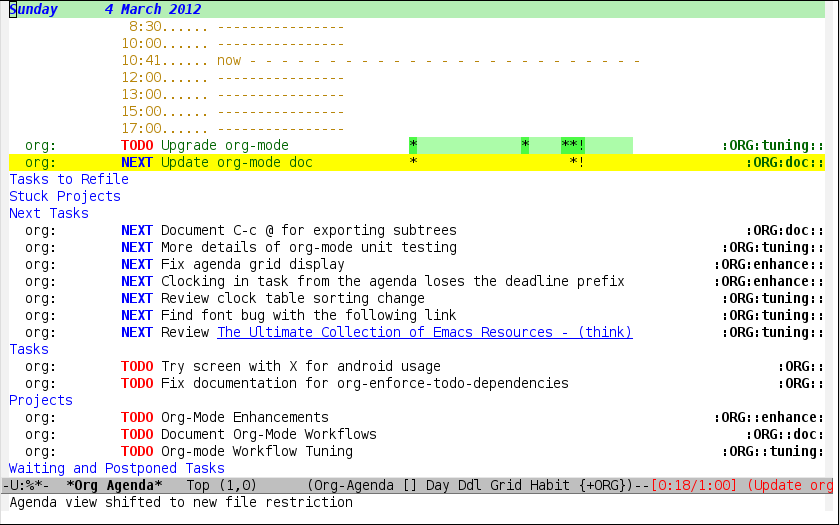
My block agenda view looks like this when not narrowed to a project.
This shows top-level projects and NEXT tasks but hides the project details since
we are not focused on any particular project.
NOTE: This agenda screen shot is out of date and does not currently match the agenda setup in this document. This will be fixed soon.
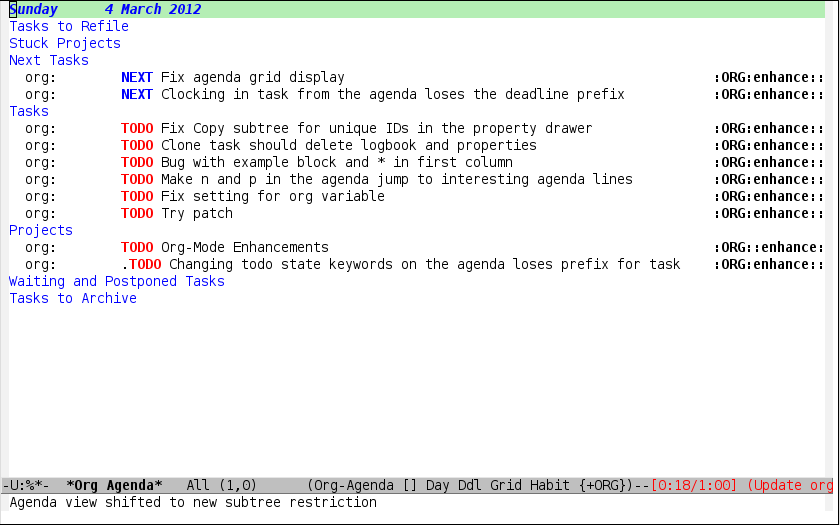
After selecting a project (with P on any task in the agenda) the block agenda changes to show the project and
any subprojects in the Projects section. Tasks show project-related tasks that are hidden when not
narrowed to a project.
This makes it easy to focus on the task at hand.
NOTE: This agenda screen shot is out of date and does not currently match the agenda setup in this document. This will be fixed soon.
I generally work top-down on the agenda. Things with deadlines and scheduled dates (planned to work on today or earlier) show up in the agenda at the top.
My day goes generally like this:
- Punch in (this starts the clock on the default task)
- Look at the agenda and make a mental note of anything important to deal with today
- Read email and news
- create notes, and tasks for things that need responses with org-capture
- Check refile tasks and respond to emails
- Look at my agenda and work on important tasks for today
- Clock it in
- Work on it until it is
DONEor it gets interrupted
- Work on tasks
- Make journal entries (
C-c c j) for interruptions - Punch out for lunch and punch back in after lunch
- work on more tasks
- Refile tasks to empty the list
- Tag tasks to be refiled with
mcollecting all tasks for the same target - Bulk refile the tasks to the target location with
B r - Repeat (or refile individually with
C-c C-w) until all refile tasks are gone
- Tag tasks to be refiled with
- Mark habits done today as DONE
- Punch out at the end of the work day
8.2. What do I work on next?
Start with deadlines and tasks scheduled today or earlier from the
daily agenda view. Then move on to tasks in the Next Tasks list in
the block agenda view. I tend to schedule current projects to 'today'
when I start work on them and they sit on my daily agenda reminding me
that they need to be completed. I normally only schedule one or two
projects to the daily agenda and unschedule things that are no longer
important and don't deserve my attention today.
When I look for a new task to work on I generally hit F12 SPC to get
the block agenda and follow this order:
- Pick something off today's agenda
- deadline for today (do this first - it's not late yet)
- deadline in the past (it's already late)
- a scheduled task for today (it's supposed to be done today)
- a scheduled task that is still on the agenda
- deadline that is coming up soon
- pick a NEXT task
- If you run out of items to work on look for a NEXT task in the current context pick a task from the Tasks list of the current project.
8.2.1. Why keep it all on the NEXT list?
I've moved to a more GTD way of doing things. Now I just use a NEXT
list. Only projects get tasks with NEXT keywords since stuck projects
initiate the need for marking or creating NEXT tasks. A NEXT task
is something that is available to work on now, it is the next
logical step in some project.
I used to have a special keyword ONGOING for things that I do a lot
and want to clock but never really start/end. I had a special agenda
view for ONGOING tasks that I would pull up to easily find the thing
I want to clock.
Since then I've moved away from using the ONGOING todo keyword.
Having an agenda view that shows NEXT tasks makes it easy to pick
the thing to clock - and I don't have to remember if I need to look in
the ONGOING list or the NEXT list when looking for the task to
clock-in. The NEXT list is basically 'what is current' - any task
that moves a project forward. I want to find the thing to work on as
fast as I can and actually do work on it - not spend time hunting
through my org files for the task that needs to be clocked-in.
To drop a task off the NEXT list simply move it back to the TODO
state.
8.3. Reading email, newsgroups, and conversations on IRC
When reading email, newsgroups, and conversations on IRC I just let
the default task (normally ** Organization) clock the time I spend on
these tasks. To read email I go to Gnus and read everything in my
inboxes. If there are emails that require a response I use
org-capture to create a new task with a heading of 'Respond to <user>'
for each one. This automatically links to the email in the task and
makes it easy to find later. Some emails are quick to respond to and
some take research and a significant amount of time to complete. I
clock each one in it's own task just in case I need that clocked time
later. The capture template for Repond To tasks is now scheduled for
today so I can refile the task to the appropriate org file without
losing the task for a week.
Next, I go to my newly created tasks to be refiled from the block
agenda with F12 a and clock in an email task and deal with it.
Repeat this until all of the 'Respond to <user>' tasks are marked
DONE.
I read email and newgroups in Gnus so I don't separate clocked time
for quickly looking at things. If an article has a useful piece of
information I want to remember I create a note for it with C-c c n
and enter the topic and file it. This takes practically no time at
all and I know the note is safely filed for later retrieval. The time
I spend in the capture buffer is clocked with that capture note.
8.4. Filtering
So many tasks, so little time. I have hundreds of tasks at any given time (373 right now). There is so much stuff to look at it can be daunting. This is where agenda filtering saves the day.
It's 11:53AM and I'm in work mode just before lunch. I don't want to see tasks that are not work related right now. I also don't want to work on a big project just before lunch… so I need to find small tasks that I can knock off the list.
How do we do this? Get a list of NEXT tasks from the block agenda and
then narrow it down with filtering. Tasks are ordered in the NEXT
agenda view by estimated effort so the short tasks are first – just
start at the top and work your way down. I can limit the displayed
agenda tasks to those estimates of 10 minutes or less with / + 1 and
I can pick something that fits the minutes I have left before I take
off for lunch.
8.4.1. Automatically removing context based tasks with / RET
/ RET in the agenda is really useful. This awesome feature was
added to org-mode by John Wiegley. It removes tasks automatically by
filtering based on a user-provided function.
At work I have projects I'm working on which are assigned by my
manager. Sometimes priorities changes and projects are delayed to
sometime in the future. This means I need to stop working on these
immediately. I put the project task on HOLD and work on something
else. The / RET filter removes HOLD tasks and subtasks (because
of tag inheritance).
At home I have some tasks tagged with farm since these need to be
performed when I am physically at our family farm. Since I am there
infrequently I have added farm to the list of auto-excluded tags on
my system. I can always explicitly filter to just farm tasks with
/ TAB farm RET when I am physically there.
I have the following setup to allow / RET to filter tasks based on
the description above.
(defun bh/org-auto-exclude-function (tag)
  "Automatic task exclusion in the agenda with / RET"
  (and (cond
        ((string= tag "hold")
         t)
        ((string= tag "farm")
         t))
       (concat "-" tag)))

(setq org-agenda-auto-exclude-function 'bh/org-auto-exclude-function)
This lets me filter tasks with just / RET on the agenda which removes tasks I'm not
supposed to be working on now from the list of returned results.
This helps to keep my agenda clutter-free.
9. Time Clocking
Okay, I admit it. I'm a clocking fanatic.
I clock everything at work. Org-mode makes this really easy. I'd rather clock too much stuff than not enough so I find it's easier to get in the habit of clocking everything.
This makes it possible to look back at the day and see where I'm spending too much time, or not enough time on specific projects. This also helps a lot when you need to estimate how long something is going to take to do – you can use your clocking data from similar tasks to help tune your estimates so they are more accurate.
Without clocking data it's hard to tell how long something took to do after the fact.
I now use the concept of punching in and punching out at the start
and end of my work day. I punch in when I arrive at work, punch out
for lunch, punch in after lunch, and punch out at the end of the day.
Every minute is clocked between punch-in and punch-out times.
Punching in defines a default task to clock time on whenever the clock would normally stop. I found that with the default org-mode setup I would lose clocked minutes during the day, a minute here, a minute there, and that all adds up. This is especially true if you write notes when moving to a DONE state - in this case the clock normally stops before you have composed the note – and good notes take a few minutes to write.
My clocking setup basically works like this:
- Punch in (start the clock)
- This clocks in a predefined task by
org-idthat is the default task to clock in whenever the clock normally stops
- This clocks in a predefined task by
- Clock in tasks normally, and let moving to a DONE state clock out
- clocking out automatically clocks time on a parent task or moves back to the predefined default task if no parent exists.
- Continue clocking whatever tasks you work on
- Punch out (stop the clock)
I'm free to change the default task multiple times during the day but with the clock moving up the project tree on clock out I no longer need to do this. I simply have a single task that gets clocked in when I punch-in.
If I punch-in with a prefix on a task in Project X then that task
automatically becomes the default task and all clocked time goes on
that project until I either punch out or punch in some other task.
My org files look like this:
todo.org:
#+FILETAGS: PERSONAL
...
* Tasks
** Organization
   :PROPERTIES:
   :CLOCK_MODELINE_TOTAL: today
   :ID:       eb155a82-92b2-4f25-a3c6-0304591af2f9
   :END:
   ...
If I am working on some task, then I simply clock in on the task. Clocking out moves the clock up to a parent task with a todo keyword (if any) which keeps the clock time in the same subtree. If there is no parent task with a todo keyword then the clock moves back to the default clocking task until I punch out or clock in some other task. When an interruption occurs I start a capture task which keeps clocked time on the interruption task until I close it with C-c C-c.
This works really well for me.
For example, consider the following org file:
* TODO Project A
** NEXT TASK 1
** TODO TASK 2
** TODO TASK 3
* Tasks
** TODO Some miscellaneous task
I'll work on this file in the following sequence:
I punch in with
F9-Iat the start of my dayThat clocks in the
Organizationtask by id in mytodo.orgfile.F12-SPCto review my block agendaPick 'TODO Some miscellaneous task' to work on next and clock that in with
IThe clock is now on 'TODO Some miscellaneous task'I complete that task and mark it done with
C-c C-t dThis stops the clock and moves it back to the
Organizationtask.Now I want to work on
Project Aso I clock inTask 1I work on Task 1 and mark it
DONE. This clocks outTask 1and moves the clock toProject A. Now I work onTask 2and clock that in.
The entire time I'm working on and clocking some subtask of Project A
all of the clock time in the interval is applied somewhere to the Project A
tree. When I eventually mark Project A done then the clock will move
back to the default organization task.
9.1. Clock Setup
To get started we need to punch in which clocks in the default
task and keeps the clock running. This is now simply a matter of
punching in the clock with F9 I. You can do this anywhere.
Clocking out will now clock in the parent task (if there is one
with a todo keyword) or clock in the default task if not parent
exists.
Keeping the clock running when moving a subtask to a DONE state
means clocking continues to apply to the project task. I can pick the
next task from the parent and clock that in without losing a minute or
two while I'm deciding what to work on next.
I keep clock times, state changes, and other notes in the :LOGBOOK:
drawer.
I have the following org-mode settings for clocking:
;;
;; Resume clocking task when emacs is restarted
(org-clock-persistence-insinuate)
;;
;; Show lot of clocking history so it's easy to pick items off the C-F11 list
(setq org-clock-history-length 23)
;; Resume clocking task on clock-in if the clock is open
(setq org-clock-in-resume t)
;; Change tasks to NEXT when clocking in
(setq org-clock-in-switch-to-state 'bh/clock-in-to-next)
;; Separate drawers for clocking and logs
(setq org-drawers (quote ("PROPERTIES" "LOGBOOK")))
;; Save clock data and state changes and notes in the LOGBOOK drawer
(setq org-clock-into-drawer t)
;; Sometimes I change tasks I'm clocking quickly - this removes clocked tasks with 0:00 duration
(setq org-clock-out-remove-zero-time-clocks t)
;; Clock out when moving task to a done state
(setq org-clock-out-when-done t)
;; Save the running clock and all clock history when exiting Emacs, load it on startup
(setq org-clock-persist t)
;; Do not prompt to resume an active clock
(setq org-clock-persist-query-resume nil)
;; Enable auto clock resolution for finding open clocks
(setq org-clock-auto-clock-resolution (quote when-no-clock-is-running))
;; Include current clocking task in clock reports
(setq org-clock-report-include-clocking-task t)

(setq bh/keep-clock-running nil)

(defun bh/clock-in-to-next (kw)
  "Switch a task from TODO to NEXT when clocking in.
Skips capture tasks, projects, and subprojects.
Switch projects and subprojects from NEXT back to TODO"
  (when (not (and (boundp 'org-capture-mode) org-capture-mode))
    (cond
     ((and (member (org-get-todo-state) (list "TODO"))
           (bh/is-task-p))
      "NEXT")
     ((and (member (org-get-todo-state) (list "NEXT"))
           (bh/is-project-p))
      "TODO"))))

(defun bh/find-project-task ()
  "Move point to the parent (project) task if any"
  (save-restriction
    (widen)
    (let ((parent-task (save-excursion (org-back-to-heading 'invisible-ok) (point))))
      (while (org-up-heading-safe)
        (when (member (nth 2 (org-heading-components)) org-todo-keywords-1)
          (setq parent-task (point))))
      (goto-char parent-task)
      parent-task)))

(defun bh/punch-in (arg)
  "Start continuous clocking and set the default task to the
selected task.  If no task is selected set the Organization task
as the default task."
  (interactive "p")
  (setq bh/keep-clock-running t)
  (if (equal major-mode 'org-agenda-mode)
      ;;
      ;; We're in the agenda
      ;;
      (let* ((marker (org-get-at-bol 'org-hd-marker))
             (tags (org-with-point-at marker (org-get-tags-at))))
        (if (and (eq arg 4) tags)
            (org-agenda-clock-in '(16))
          (bh/clock-in-organization-task-as-default)))
    ;;
    ;; We are not in the agenda
    ;;
    (save-restriction
      (widen)
      ; Find the tags on the current task
      (if (and (equal major-mode 'org-mode) (not (org-before-first-heading-p)) (eq arg 4))
          (org-clock-in '(16))
        (bh/clock-in-organization-task-as-default)))))

(defun bh/punch-out ()
  (interactive)
  (setq bh/keep-clock-running nil)
  (when (org-clock-is-active)
    (org-clock-out))
  (org-agenda-remove-restriction-lock))

(defun bh/clock-in-default-task ()
  (save-excursion
    (org-with-point-at org-clock-default-task
      (org-clock-in))))

(defun bh/clock-in-parent-task ()
  "Move point to the parent (project) task if any and clock in"
  (let ((parent-task))
    (save-excursion
      (save-restriction
        (widen)
        (while (and (not parent-task) (org-up-heading-safe))
          (when (member (nth 2 (org-heading-components)) org-todo-keywords-1)
            (setq parent-task (point))))
        (if parent-task
            (org-with-point-at parent-task
              (org-clock-in))
          (when bh/keep-clock-running
            (bh/clock-in-default-task)))))))

(defvar bh/organization-task-id "eb155a82-92b2-4f25-a3c6-0304591af2f9")

(defun bh/clock-in-organization-task-as-default ()
  (interactive)
  (org-with-point-at (org-id-find bh/organization-task-id 'marker)
    (org-clock-in '(16))))

(defun bh/clock-out-maybe ()
  (when (and bh/keep-clock-running
             (not org-clock-clocking-in)
             (marker-buffer org-clock-default-task)
             (not org-clock-resolving-clocks-due-to-idleness))
    (bh/clock-in-parent-task)))

(add-hook 'org-clock-out-hook 'bh/clock-out-maybe 'append)
I used to clock in tasks by ID using the following function but with
the new punch-in and punch-out I don't need these as much anymore.
f9-SPC calls bh/clock-in-last-task which switches the clock back
to the previously clocked task.
(require 'org-id)
(defun bh/clock-in-task-by-id (id)
  "Clock in a task by id"
  (org-with-point-at (org-id-find id 'marker)
    (org-clock-in nil)))

(defun bh/clock-in-last-task (arg)
  "Clock in the interrupted task if there is one
Skip the default task and get the next one.
A prefix arg forces clock in of the default task."
  (interactive "p")
  (let ((clock-in-to-task
         (cond
          ((eq arg 4) org-clock-default-task)
          ((and (org-clock-is-active)
                (equal org-clock-default-task (cadr org-clock-history)))
           (caddr org-clock-history))
          ((org-clock-is-active) (cadr org-clock-history))
          ((equal org-clock-default-task (car org-clock-history)) (cadr org-clock-history))
          (t (car org-clock-history)))))
    (widen)
    (org-with-point-at clock-in-to-task
      (org-clock-in nil))))
9.2. Clocking in
When I start or continue working on a task I clock it in with any of the following:
C-c C-x C-iIin the agendaIspeed key on the first character of the heading linef9 Iwhile on the task in the agendaf9 Iwhile in the task in an org file
9.2.1. Setting a default clock task
I have a default ** Organization task in my todo.org file that
I tend to put miscellaneous clock time on. This is the task I
clock in on when I punch in at the start of my work day with
F9-I. While reorganizing my org-files, reading email,
clearing my inbox, and doing other planning work that isn't for
a specific project I'll clock in this task. Punching-in
anywhere clocks in this Organization task as the default task.
If I want to change the default clocking task I just visit the
new task in any org buffer and clock it in with C-u C-u C-c C-x
C-i. Now this new task that collects miscellaneous clock
minutes when the clock would normally stop.
You can quickly clock in the default clocking task with C-u C-c
C-x C-i d. Another option is to repeatedly clock out so the
clock moves up the project tree until you clock out the
top-level task and the clock moves to the default task.
9.2.2. Using the clock history to clock in old tasks
You can use the clock history to restart clocks on old tasks you've clocked or to jump directly to a task you have clocked previously. I use this mainly to clock in whatever got interrupted by something.
Consider the following scenario:
- You are working on and clocking
Task A(Organization) - You get interrupted and switch to
Task B(Document my use of org-mode) - You complete
Task B(Document my use of org-mode) - Now you want to go back to
Task A(Organization) again to continue
This is easy to deal with.
- Clock in
Task A, work on it - Go to
Task B(or create a new task) and clock it in - When you are finished with
Task BhitC-u C-c C-x C-i i
This displays a clock history selection window like the following and
selects the interrupted [i] entry.
Clock history selection buffer for C-u C-c C-x C-i
Default Task
[d] norang          Organization                          <-- Task B
The task interrupted by starting the last one
[i] norang          Organization                          <-- Task B
Current Clocking Task
[c] org             NEXT Document my use of org-mode      <-- Task A
Recent Tasks
[1] org             NEXT Document my use of org-mode      <-- Task A
[2] norang          Organization                          <-- Task B
...
[Z] org             DONE Fix default section links        <-- 35 clock task entries ago
9.3. Clock Everything - Create New Tasks
In order to clock everything you need a task for everything. That's fine for planned projects but interruptions inevitably occur and you need some place to record whatever time you spend on that interruption.
To deal with this we create a new capture task to record the thing we are about to do. The workflow goes something like this:
- You are clocking some task and an interruption occurs
- Create a quick capture task journal entry
C-c c j - Type the heading
- go do that thing (eat lunch, whatever)
- file it
C-c C-c, this restores the clock back to the previous clocking task - clock something else in or continue with the current clocking task
This means you can ignore the details like where this task really belongs in your org file layout and just get on with completing the thing. Refiling a bunch of tasks later in a group when it is convenient to refile the tasks saves time in the long run.
If it's a one-shot uninteresting task (like a coffee break) I create a capture journal entry for it that goes to the diary.org date tree. If it's a task that actually needs to be tracked and marked done, and applied to some project then I create a capture task instead which files it in refile.org.
9.4. Finding tasks to clock in
To find a task to work on I use one of the following options (generally listed most frequently used first)
- Use the clock history C-u C-c C-x C-i Go back to something I was clocking that is not finished
- Pick something off today's block agenda
SCHEDULEDorDEADLINEitems that need to be done soon - Pick something off the
NEXTtasks agenda view Work on some unfinished task to move to completion - Pick something off the other task list
- Use an agenda view with filtering to pick something to work on
Punching in on the task you select will restrict the agenda view to that project so you can focus on just that thing for some period of time.
9.5. Editing clock entries
Sometimes it is necessary to edit clock entries so they reflect reality. I find I do this for maybe 2-3 entries in a week.
Occassionally I cannot clock in a task on time because I'm away from my computer. In this case the previous clocked task is still running and counts time for both tasks which is wrong.
I make a note of the time and then when I get back to my computer I clock in the right task and edit the start and end times to correct the clock history.
To visit the clock line for an entry quickly use the agenda log mode.
F12 a l shows all clock lines for today. I use this to navigate to
the appropriate clock lines quickly. F11 goes to the current clocked
task but the agenda log mode is better for finding and visiting older
clock entries.
Use F12 a l to open the agenda in log mode and show only logged
clock times. Move the cursor down to the clock line you need to edit
and hit TAB and you're there.
To edit a clock entry just put the cursor on the part of the date you
want to edit (use the keyboard not the mouse - since the clicking on
the timestamp with the mouse goes back to the agenda for that day) and
hit the S-<up arrow> or S-<down arrow> keys to change the time.
The following setting makes time editing use discrete minute intervals (no rounding) increments:
(setq org-time-stamp-rounding-minutes (quote (1 1)))
Editing the time with the shift arrow combination also updates the total for the clock line which is a nice convenience.
I always check that I haven't created task overlaps when fixing time
clock entries by viewing them with log mode on in the agenda. There
is a new view in the agenda for this – just hit v c in the daily
agenda and clock gaps and overlaps are identified.
I want my clock entries to be as accurate as possible.
The following setting shows 1 minute clocking gaps.
(setq org-agenda-clock-consistency-checks
      (quote (:max-duration "4:00"
              :min-duration 0
              :max-gap 0
              :gap-ok-around ("4:00"))))
10. Time reporting and tracking
10.1. Billing clients based on clocked time
At the beginning of the month I invoice my clients for work done last month. This is where I review my clocking data for correctness before billing for the clocked time.
Billing for clocked time basically boils down to the following steps:
- Verify that the clock data is complete and correct
- Use clock reports to summarize time spent
Create an invoice based on the clock data
I currently create invoices in an external software package based on the org-mode clock data.
Archive complete tasks so they are out of the way.
See Archiving for more details.
10.1.1. Verify that the clock data is complete and correct
Since I change tasks often (sometimes more than once in a minute) I use the following setting to remove clock entries with a zero duration.
;; Sometimes I change tasks I'm clocking quickly - this removes clocked tasks with 0:00 duration
(setq org-clock-out-remove-zero-time-clocks t)
This setting just keeps my clocked log entries clean - only keeping clock entries that contribute to the clock report.
Before invoicing for clocked time it is important to make sure your clocked time data is correct. If you have a clocked time with an entry that is not closed (ie. it has no end time) then that is a hole in your clocked day and it gets counted as zero (0) for time spent on the task when generating clock reports. Counting it as zero is almost certainly wrong.
To check for unclosed clock times I use the agenda-view clock check
(v c in the agenda). This view shows clocking gaps and overlaps in
the agenda.
To check the last month's clock data I use F12 a v m b v c
which shows a full month in the agenda, moves to the previous
month, and shows the clocked times only. It's important to
remove any agenda restriction locks and filters when checking
the logs for gaps and overlaps.
The clocked-time only display in the agenda makes it easy to quickly scan down the list to see if an entry is missing an end time. If an entry is not closed you can manually fix the clock entry based on other clock info around that time.
10.1.2. Using clock reports to summarize time spent
Billable time for clients are kept in separate org files.
To get a report of time spent on tasks for XYZ.org you simply visit
the XYZ.org file and run an agenda clock report for the last month
with F12 < a v m b R. This limits the agenda to this one file,
shows the agenda for a full month, moves to last month, and generates
a clock report.
My agenda org clock report settings show 5 levels of detail with links
to the tasks. I like wider reports than the default compact setting
so I override the :narrow value.
;; Agenda clock report parameters
(setq org-agenda-clockreport-parameter-plist
      (quote (:link t :maxlevel 5 :fileskip0 t :compact t :narrow 80)))
I used to have a monthly clock report dynamic block in each project org file and manually updated them at the end of my billing cycle. I used this as the basis for billing my clients for time spent on their projects. I found updating the dynamic blocks fairly tedious when you have more than a couple of files for the month.
I have since moved to using agenda clock reports shortly after that feature was added. I find this much more convenient. The data isn't normally for consumption by anyone else so the format of the agenda clock report format is great for my use-case.
10.2. Task Estimates and column view
Estimating how long tasks take to complete is a difficult skill to master. Org-mode makes it easy to practice creating estimates for tasks and then clock the actual time it takes to complete.
By repeatedly estimating tasks and reviewing how your estimate relates to the actual time clocked you can tune your estimating skills.
10.2.1. Creating a task estimate with column mode
I use properties and column view to do project estimates.
I set up column view globally with the following headlines
; Set default column view headings: Task Effort Clock_Summary
(setq org-columns-default-format "%80ITEM(Task) %10Effort(Effort){:} %10CLOCKSUM")
This makes column view show estimated task effort and clocked times side-by-side which is great for reviewing your project estimates.
A property called Effort records the estimated amount of time a
given task will take to complete. The estimate times I use are one
of:
- 10 minutes
- 30 minutes
- 1 hour
- 2 hours
- 3 hours
- 4 hours
- 5 hours
- 6 hours
- 7 hours
- 8 hours
These are stored for easy use in column mode in the global property
Effort_ALL.
; global Effort estimate values
; global STYLE property values for completion
(setq org-global-properties (quote (("Effort_ALL" . "0:15 0:30 0:45 1:00 2:00 3:00 4:00 5:00 6:00 0:00")
                                    ("STYLE_ALL" . "habit"))))
To create an estimate for a task or subtree start column mode with
C-c C-x C-c and collapse the tree with c. This shows a table
overlayed on top of the headlines with the task name, effort estimate,
and clocked time in columns.
With the cursor in the Effort column for a task you can easily set
the estimated effort value with the quick keys 1 through 9.
After setting the effort values exit column mode with q.
10.2.2. Saving your estimate
For fixed price jobs where you provide your estimate to a client, then work to complete the project it is useful to save the original estimate that is provided to the client.
Save your original estimate by creating a dynamic clock report table
at the top of your estimated project subtree. Entering C-c C-x i
RET inserts a clock table report with your estimated values and any
clocked time to date.
u
Original Estimate
#+BEGIN: columnview :hlines 1 :id local
| Task                        | Estimated Effort | CLOCKSUM |
|-----------------------------+------------------+----------|
| ** TODO Project to estimate |             5:40 |          |
| *** TODO Step 1             |             0:10 |          |
| *** TODO Step 2             |             0:10 |          |
| *** TODO Step 3             |             5:10 |          |
| **** TODO Step 3.1          |             2:00 |          |
| **** TODO Step 3.2          |             3:00 |          |
| **** TODO Step 3.3          |             0:10 |          |
| *** TODO Step 4             |             0:10 |          |
#+END:
I normally delete the #+BEGIN: and #+END: lines from the original
table after providing the estimate to the client to ensure I don't
accidentally update the table by hitting C-c C-c on the #+BEGIN:
line.
Saving the original estimate data makes it possible to refine the project tasks into subtasks as you work on the project without losing the original estimate data.
10.2.3. Reviewing your estimate
Column view is great for reviewing your estimate. This shows your
estimated time value and the total clock time for the project
side-by-side.
Creating a dynamic clock table with C-c C-x i RET is a great way to
save this project review if you need to make it available to other
applications.
C-c C-x C-d also provides a quick summary of clocked time for the
current org file.
10.3. Providing progress reports to others
When someone wants details of what I've done recently I simple generate a log report in the agenda with tasks I've completed and state changes combined with a clock report for the appropriate time period.
The following setting shows closed tasks and state changes in the agenda. Combined with the agenda clock report ('R') I can quickly generate all of the details required.
;; Agenda log mode items to display (closed and state changes by default)
(setq org-agenda-log-mode-items (quote (closed state)))
To generate the report I pull up the agenda for the appropriate time frame
(today, yesterday, this week, or last week) and hit the key sequence
l R to add the log report (without clocking data lines) and the agenda clock
report at the end.
Then it's simply a matter of exporting the resulting agenda in some useful format
to provide to other people. C-x C-w /tmp/agenda.html RET exports to HTML
and C-x C-w /tmp/agenda.txt RET exports to plain text. Other formats are
available but I use these two the most.
Combining this export with tag filters and C-u R can limit the
report to exactly the tags that people are interested in.
11. Tags
Tasks can have any number of arbitrary tags. Tags are used for:
- filtering todo lists and agenda views
- providing context for tasks
- tagging notes
- tagging phone calls
- tagging meetings
- tagging tasks to be refiled
- tagging tasks in a WAITING state because a parent task is WAITING
- tagging cancelled tasks because a parent task is CANCELLED
- preventing export of some subtrees when publishing
I use tags mostly for filtering in the agenda. This means you can find tasks with a specific tag easily across your large number of org-mode files.
Some tags are mutually exclusive. These are defined in a group so
that only one of the tags can be applied to a task at a time
(disregarding tag inheritance). I use these types for tags for
applying context to a task. (Work tasks have an @office tag, and
are done at the office, Farm tasks have an @farm tag and are done at
the farm – I can't change the oil on the tractor if I'm not at the
farm… so I hide these and other tasks by filtering my agenda view to
only @office tasks when I'm at the office.)
Tasks are grouped together in org-files and a #+FILETAGS: entry
applies a tag to all tasks in the file. I use this to apply a tag to
all tasks in the file. My norang.org file creates a NORANG file tag
so I can filter tasks in the agenda in the norang.org file easily.
11.1. Tags
Here are my tag definitions with associated keys for filtering in the agenda views.
The startgroup - endgroup (@XXX) tags are mutually exclusive -
selecting one removes a similar tag already on the task. These are
the context tags - you can't be in two places at once so if a task is
marked with @farm and you add @office then the @farm tag is removed
automagically.
The other tags WAITING .. FLAGGED are not mutually exclusive and
multiple tags can appear on a single task. Some of those tags are
created by todo state change triggers. The shortcut key is used to
add or remove the tag using C-c C-q or to apply the task for
filtering on the agenda.
I have both FARM and @farm tags. FARM is set by a FILETAGS
entry and just gives me a way to filter anything farm related. The
@farm tag signifies that the task as to be done at the farm. If I
have to call someone about something that would have a FARM tag but
I can do that at home on my lunch break. I don't physically have to
be at the farm to make the call.
; Tags with fast selection keys
(setq org-tag-alist (quote ((:startgroup)
                            ("@errand" . ?e)
                            ("@office" . ?o)
                            ("@home" . ?H)
                            ("@farm" . ?f)
                            (:endgroup)
                            ("WAITING" . ?w)
                            ("HOLD" . ?h)
                            ("PERSONAL" . ?P)
                            ("WORK" . ?W)
                            ("FARM" . ?F)
                            ("ORG" . ?O)
                            ("NORANG" . ?N)
                            ("crypt" . ?E)
                            ("NOTE" . ?n)
                            ("CANCELLED" . ?c)
                            ("FLAGGED" . ??))))

; Allow setting single tags without the menu
(setq org-fast-tag-selection-single-key (quote expert))

; For tag searches ignore tasks with scheduled and deadline dates
(setq org-agenda-tags-todo-honor-ignore-options t)
11.2. Filetags
Filetags are a convenient way to apply one or more tags to all of the headings in a file.
Filetags look like this:
#+FILETAGS: NORANG @office
I have the following #+FILETAGS: entries in my org-mode files:
11.2.1. Non-work related org-mode files
| File | Tags |
|---|---|
| todo.org | PERSONAL |
| gsoc2009.org | GSOC PERSONAL |
| git.org | GIT WORK |
| org.org | ORG WORK |
| mark.org | MARK PERSONAL |
| farm.org | FARM PERSONAL |
11.2.2. Work related org-mode files
| File | Tags |
|---|---|
| norang.org | NORANG @office |
| ABC.org | ABC @office |
| XYZ.org | XYZ @office |
| ABC-DEF.org | ABC DEF @office |
| ABC-KKK.org | ABC KKK @office |
| YYY.org | YYY @office |
11.2.3. Refile tasks
| File | Tags |
|---|---|
| refile.org | REFILE |
11.3. State Trigger Tags
The following tags are automatically added or removed by todo state triggers described previously in ToDo state triggers
WAITINGCANCELLED
12. Handling Notes
Notes are little gems of knowledge that you come across during your day. They are just like tasks except there is nothing to do (except learn and memorize the gem of knowledge). Unfortunately there are way too many gems to remember and my head explodes just thinking about it.
org-mode to the rescue!
Often I'll find some cool feature or thing I want to remember while
reading the org-mode and git mailing lists in Gnus. To create a note
I use my note capture template C-c c n, type a heading for the note
and C-c C-c to save it. The only other thing to do is to refile it
(later) to the appropriate project file.
I have an agenda view just to find notes. Notes are refiled to an
appropriate project file and task. If there is no specific task it
belongs to it goes to the catchall * Notes task. I generally have a
catchall notes task in every project file. Notes are created with a
NOTE tag already applied by the capture template so I'm free to
refile the note anywhere. As long as the note is in a project file
that contributes to my agenda (ie. in org-agenda-files) then I can
find the note back easily with my notes agenda view by hitting the key
combination F12 N. I'm free to limit the agenda view of notes using
standard agenda tag filtering.
Short notes with a meaningful headline are a great way to remember
technical details without the need to actually remember anything -
other than how to find them back when you need them using F12 N.
Notes that are project related and not generally useful can be archived with the project and removed from the agenda when the project is removed.
So my org notes go in org.org and my git notes go in git.org both
under the * Notes task. I'll forever be able to find those. A note
about some work project detail I want to remember with the project is
filed to the project task under the appropriate work org-mode file and
eventually gets removed from the agenda when the project is complete
and archived.
13. Handling Phone Calls
Phone calls are interruptions and I use capture mode to deal with
these (like all interruptions). Most of the heavy lifting for phone
calls is done by capture mode. I use a special capture template for
phone calls combined with a custom function that replaces text with
information from my bbdb addressbook database.
C-c c p starts a capture task normally and I'm free to enter notes
from the call in the template immediately. The cursor starts in the
template normally where the name of the caller would be inserted. I
can use a bbdb lookup function to insert the name with f9-p or I
can just type in whatever is appropriate. If a bbdb entry needs to
be created for the caller I can do that and replace the caller details
with f9-p anytime that is convenient for me. I found that
automatically calling the bbdb lookup function would interrupt my
workflow during the call in cases where the information about the
caller was not readily available. Sometimes I want to make notes first
and get the caller details later during the call.
The phone call capture template starts the clock as soon as the phone
rings and I'm free to lookup and replace the caller in bbdb anytime
during or after the call. Capture mode starts the clock using the
:clock-in t setting in the template.
When the phone call ends I simple do C-c C-c to close the capture
buffer and stop the clock. If I have to close it early and look up
other information during the call I just do C-c C-c F9-SPC to close
the capture buffer (which stops the clock) and then immediately switch
back to the last clocked item to continue the clock in the phone call
task. When the phone call ends I clock out which normally clocks in
my default task again (if any).
Here is my set up for phone calls. I would like to thank Gregory
- Grubbs for the original bbdb lookup functions which this version
is based on.
Below is the partial capture template showing the phone call template followed by the phone-call related lookup functions.
;; Capture templates for: TODO tasks, Notes, appointments, phone calls, and org-protocol
(setq org-capture-templates
      (quote (...
              ("p" "Phone call" entry (file "~/git/org/refile.org")
               "* PHONE %? :PHONE:\n%U" :clock-in t :clock-resume t)
              ...)))
(require 'bbdb)
(require 'bbdb-com)

(global-set-key (kbd "<f9> p") 'bh/phone-call)

;;
;; Phone capture template handling with BBDB lookup
;; Adapted from code by Gregory J. Grubbs
(defun bh/phone-call ()
  "Return name and company info for caller from bbdb lookup"
  (interactive)
  (let* (name rec caller)
    (setq name (completing-read "Who is calling? "
                                (bbdb-hashtable)
                                'bbdb-completion-predicate
                                'confirm))
    (when (> (length name) 0)
      ; Something was supplied - look it up in bbdb
      (setq rec
            (or (first
                 (or (bbdb-search (bbdb-records) name nil nil)
                     (bbdb-search (bbdb-records) nil name nil)))
                name)))

    ; Build the bbdb link if we have a bbdb record, otherwise just return the name
    (setq caller (cond ((and rec (vectorp rec))
                        (let ((name (bbdb-record-name rec))
                              (company (bbdb-record-company rec)))
                          (concat "[[bbdb:"
                                  name "]["
                                  name "]]"
                                  (when company
                                    (concat " - " company)))))
                       (rec)
                       (t "NameOfCaller")))
    (insert caller)))
14. GTD stuff
Most of my day is deadline/schedule driven. I work off of the agenda first and then pick items from the todo lists as outlined in What do I work on next?
14.1. Weekly Review Process
The first day of the week (usually Monday) I do my weekly review. I keep a list like this one to remind me what needs to be done.
To keep the agenda fast I set
(setq org-agenda-span 'day)
so only today's date is shown by default. I only need the weekly view during my weekly review and this keeps my agenda generation fast.
I have a recurring task which keeps my weekly review checklist handy. This pops up as a reminder on Monday's. This week I'm doing my weekly review on Tuesday since Monday was a holiday.
* NEXT Weekly Review [0/6]
  SCHEDULED: <2009-05-18 Mon ++1w>
  :LOGBOOK:...
  :PROPERTIES:...

  What to review:

   - [ ] Check follow-up folder
   - [ ] Review weekly agenda =F12 a w //=
   - [ ] Check clocking data for past week =v c=
   - [ ] Review clock report for past week =R=
     - Check where we spent time (too much or too little) and rectify this week
   - [ ] Look at entire agenda for today  =F12 SPC=
   - [ ] Review projects =F12 SPC //= and =V= repeatedly to view each project

   - start work
     - daily agenda first - knock off items
     - then work on NEXT tasks
The first item [ ] Check follow-up folder makes me pull out the paper
file I dump stuff into all week long - things I need to take care of
but are in no particular hurry to deal with. Stuff I get in the mail
etc. that I don't want to deal with now. I just toss it in my
Follow-Up folder in the filing cabinet and forget about it until the
weekly review.
I go through the folder and weed out anything that needs to be dealt
with. After that everything else is in org-mode. I tend to
schedule tasks onto the agenda for the coming week so that I don't
spend lots of time trying to find what needs to be worked on next.
This works for me. Your mileage may vary ;)
14.2. Project definition and finding stuck projects
I'm using a new lazy project definition to mark tasks as projects. This requires zero effort from me. Any task with a subtask using a todo keyword is a project. Period.
Projects are 'stuck' if they have no subtask with a NEXT todo
keyword task defined.
The org-mode stuck projects agenda view lists projects that have no
NEXT task defined. Stuck projects show up on my block agenda and I
tend to assign a NEXT task so the list remains empty. This helps to
keep projects moving forward.
I disable the default org-mode stuck projects agenda view with the following setting.
(setq org-stuck-projects (quote ("" nil nil "")))
This prevents org-mode from trying to show incorrect data if I select
the default stuck project view with F12 # from the agenda menu. My
customized stuck projects view is part of my block agenda displayed
with F12 SPC.
Projects can have subprojects - and these subprojects can also be stuck.
Any project that is stuck shows up on the stuck projects list so I can
indicate or create a NEXT task to move that project forward.
In the following example Stuck Project A is stuck because it has no
subtask which is NEXT. Project C is not stuck because it has
NEXT tasks SubTask G and Task I. Stuck Sub Project D is stuck
because SubTask E is not NEXT and there are no other tasks
available in this project.
* Category
** TODO Stuck Project A
*** TODO Task B
** TODO Project C
*** TODO Stuck Sub Project D
**** TODO SubTask E
*** TODO Sub Project F
**** NEXT SubTask G
**** TODO SubTask H
*** NEXT Task I
*** TODO Task J
All of the stuck projects and subprojects show up in the stuck
projects list and that is my indication to assign or create NEXT
tasks until the stuck projects list is empty. Occasionally some
subtask is WAITING for something and the project is stuck until that
condition is satisfied. In this case I leave it on the stuck project
list and just work on something else. This stuck project 'bugs' me
regularly when I see it on the block agenda and this prompts me to
follow up on the thing that I'm waiting for.
I have the following helper functions defined for projects which are used by agenda views.
(defun bh/is-project-p ()
  "Any task with a todo keyword subtask"
  (save-restriction
    (widen)
    (let ((has-subtask)
          (subtree-end (save-excursion (org-end-of-subtree t)))
          (is-a-task (member (nth 2 (org-heading-components)) org-todo-keywords-1)))
      (save-excursion
        (forward-line 1)
        (while (and (not has-subtask)
                    (< (point) subtree-end)
                    (re-search-forward "^\*+ " subtree-end t))
          (when (member (org-get-todo-state) org-todo-keywords-1)
            (setq has-subtask t))))
      (and is-a-task has-subtask))))

(defun bh/is-project-subtree-p ()
  "Any task with a todo keyword that is in a project subtree.
Callers of this function already widen the buffer view."
  (let ((task (save-excursion (org-back-to-heading 'invisible-ok)
                              (point))))
    (save-excursion
      (bh/find-project-task)
      (if (equal (point) task)
          nil
        t))))

(defun bh/is-task-p ()
  "Any task with a todo keyword and no subtask"
  (save-restriction
    (widen)
    (let ((has-subtask)
          (subtree-end (save-excursion (org-end-of-subtree t)))
          (is-a-task (member (nth 2 (org-heading-components)) org-todo-keywords-1)))
      (save-excursion
        (forward-line 1)
        (while (and (not has-subtask)
                    (< (point) subtree-end)
                    (re-search-forward "^\*+ " subtree-end t))
          (when (member (org-get-todo-state) org-todo-keywords-1)
            (setq has-subtask t))))
      (and is-a-task (not has-subtask)))))

(defun bh/is-subproject-p ()
  "Any task which is a subtask of another project"
  (let ((is-subproject)
        (is-a-task (member (nth 2 (org-heading-components)) org-todo-keywords-1)))
    (save-excursion
      (while (and (not is-subproject) (org-up-heading-safe))
        (when (member (nth 2 (org-heading-components)) org-todo-keywords-1)
          (setq is-subproject t))))
    (and is-a-task is-subproject)))

(defun bh/list-sublevels-for-projects-indented ()
  "Set org-tags-match-list-sublevels so when restricted to a subtree we list all subtasks.
  This is normally used by skipping functions where this variable is already local to the agenda."
  (if (marker-buffer org-agenda-restrict-begin)
      (setq org-tags-match-list-sublevels 'indented)
    (setq org-tags-match-list-sublevels nil))
  nil)

(defun bh/list-sublevels-for-projects ()
  "Set org-tags-match-list-sublevels so when restricted to a subtree we list all subtasks.
  This is normally used by skipping functions where this variable is already local to the agenda."
  (if (marker-buffer org-agenda-restrict-begin)
      (setq org-tags-match-list-sublevels t)
    (setq org-tags-match-list-sublevels nil))
  nil)

(defvar bh/hide-scheduled-and-waiting-next-tasks t)

(defun bh/toggle-next-task-display ()
  (interactive)
  (setq bh/hide-scheduled-and-waiting-next-tasks (not bh/hide-scheduled-and-waiting-next-tasks))
  (when  (equal major-mode 'org-agenda-mode)
    (org-agenda-redo))
  (message "%s WAITING and SCHEDULED NEXT Tasks" (if bh/hide-scheduled-and-waiting-next-tasks "Hide" "Show")))

(defun bh/skip-stuck-projects ()
  "Skip trees that are not stuck projects"
  (save-restriction
    (widen)
    (let ((next-headline (save-excursion (or (outline-next-heading) (point-max)))))
      (if (bh/is-project-p)
          (let* ((subtree-end (save-excursion (org-end-of-subtree t)))
                 (has-next ))
            (save-excursion
              (forward-line 1)
              (while (and (not has-next) (< (point) subtree-end) (re-search-forward "^\\*+ NEXT " subtree-end t))
                (unless (member "WAITING" (org-get-tags-at))
                  (setq has-next t))))
            (if has-next
                nil
              next-headline)) ; a stuck project, has subtasks but no next task
        nil))))

(defun bh/skip-non-stuck-projects ()
  "Skip trees that are not stuck projects"
  ;; (bh/list-sublevels-for-projects-indented)
  (save-restriction
    (widen)
    (let ((next-headline (save-excursion (or (outline-next-heading) (point-max)))))
      (if (bh/is-project-p)
          (let* ((subtree-end (save-excursion (org-end-of-subtree t)))
                 (has-next ))
            (save-excursion
              (forward-line 1)
              (while (and (not has-next) (< (point) subtree-end) (re-search-forward "^\\*+ NEXT " subtree-end t))
                (unless (member "WAITING" (org-get-tags-at))
                  (setq has-next t))))
            (if has-next
                next-headline
              nil)) ; a stuck project, has subtasks but no next task
        next-headline))))

(defun bh/skip-non-projects ()
  "Skip trees that are not projects"
  ;; (bh/list-sublevels-for-projects-indented)
  (if (save-excursion (bh/skip-non-stuck-projects))
      (save-restriction
        (widen)
        (let ((subtree-end (save-excursion (org-end-of-subtree t))))
          (cond
           ((bh/is-project-p)
            nil)
           ((and (bh/is-project-subtree-p) (not (bh/is-task-p)))
            nil)
           (t
            subtree-end))))
    (save-excursion (org-end-of-subtree t))))

(defun bh/skip-non-tasks ()
  "Show non-project tasks.
Skip project and sub-project tasks, habits, and project related tasks."
  (save-restriction
    (widen)
    (let ((next-headline (save-excursion (or (outline-next-heading) (point-max)))))
      (cond
       ((bh/is-task-p)
        nil)
       (t
        next-headline)))))

(defun bh/skip-project-trees-and-habits ()
  "Skip trees that are projects"
  (save-restriction
    (widen)
    (let ((subtree-end (save-excursion (org-end-of-subtree t))))
      (cond
       ((bh/is-project-p)
        subtree-end)
       ((org-is-habit-p)
        subtree-end)
       (t
        nil)))))

(defun bh/skip-projects-and-habits-and-single-tasks ()
  "Skip trees that are projects, tasks that are habits, single non-project tasks"
  (save-restriction
    (widen)
    (let ((next-headline (save-excursion (or (outline-next-heading) (point-max)))))
      (cond
       ((org-is-habit-p)
        next-headline)
       ((and bh/hide-scheduled-and-waiting-next-tasks
             (member "WAITING" (org-get-tags-at)))
        next-headline)
       ((bh/is-project-p)
        next-headline)
       ((and (bh/is-task-p) (not (bh/is-project-subtree-p)))
        next-headline)
       (t
        nil)))))

(defun bh/skip-project-tasks-maybe ()
  "Show tasks related to the current restriction.
When restricted to a project, skip project and sub project tasks, habits, NEXT tasks, and loose tasks.
When not restricted, skip project and sub-project tasks, habits, and project related tasks."
  (save-restriction
    (widen)
    (let* ((subtree-end (save-excursion (org-end-of-subtree t)))
           (next-headline (save-excursion (or (outline-next-heading) (point-max))))
           (limit-to-project (marker-buffer org-agenda-restrict-begin)))
      (cond
       ((bh/is-project-p)
        next-headline)
       ((org-is-habit-p)
        subtree-end)
       ((and (not limit-to-project)
             (bh/is-project-subtree-p))
        subtree-end)
       ((and limit-to-project
             (bh/is-project-subtree-p)
             (member (org-get-todo-state) (list "NEXT")))
        subtree-end)
       (t
        nil)))))

(defun bh/skip-project-tasks ()
  "Show non-project tasks.
Skip project and sub-project tasks, habits, and project related tasks."
  (save-restriction
    (widen)
    (let* ((subtree-end (save-excursion (org-end-of-subtree t))))
      (cond
       ((bh/is-project-p)
        subtree-end)
       ((org-is-habit-p)
        subtree-end)
       ((bh/is-project-subtree-p)
        subtree-end)
       (t
        nil)))))

(defun bh/skip-non-project-tasks ()
  "Show project tasks.
Skip project and sub-project tasks, habits, and loose non-project tasks."
  (save-restriction
    (widen)
    (let* ((subtree-end (save-excursion (org-end-of-subtree t)))
           (next-headline (save-excursion (or (outline-next-heading) (point-max)))))
      (cond
       ((bh/is-project-p)
        next-headline)
       ((org-is-habit-p)
        subtree-end)
       ((and (bh/is-project-subtree-p)
             (member (org-get-todo-state) (list "NEXT")))
        subtree-end)
       ((not (bh/is-project-subtree-p))
        subtree-end)
       (t
        nil)))))

(defun bh/skip-projects-and-habits ()
  "Skip trees that are projects and tasks that are habits"
  (save-restriction
    (widen)
    (let ((subtree-end (save-excursion (org-end-of-subtree t))))
      (cond
       ((bh/is-project-p)
        subtree-end)
       ((org-is-habit-p)
        subtree-end)
       (t
        nil)))))

(defun bh/skip-non-subprojects ()
  "Skip trees that are not projects"
  (let ((next-headline (save-excursion (outline-next-heading))))
    (if (bh/is-subproject-p)
        nil
      next-headline)))
15. Archiving
15.1. Archiving Subtrees
My archiving procedure has changed. I used to move entire subtrees to
a separate archive file for the project. Task subtrees in FILE.org
get archived to FILE.org_archive using the a y command in the
agenda.
I still archive to the same archive file as before but now I archive any done state todo task that is old enough to archive. Tasks to archive are listed automatically at the end of my block agenda and these are guaranteed to be old enough that I've already billed any time associated with these tasks. This cleans up my project trees and removes the old tasks that are no longer interesting. The archived tasks get extra property data created during the archive procedure so that it is possible to reconstruct exactly where the archived entry came from in the rare case where you want to unarchive something.
My archive files are huge but so far I haven't found a need to split them by year (or decade) :)
Archivable tasks show up in the last section of my block agenda when a new month starts. Any tasks that are done but have no timestamps this month or last month (ie. they are over 30 days old) are available to archive. Timestamps include closed dates, notes, clock data, etc - any active or inactive timestamp in the task.
Archiving is trivial. Just mark all of the entries in the block agenda
using the m key and then archive them all to the appropriate place
with B $. This normally takes less than 5 minutes once a month.
15.2. Archive Setup
I no longer use an ARCHIVE property in my subtrees. Tasks can just
archive normally to the Archived Tasks heading in the archive file.
The following setting ensures that task states are untouched when they
are archived. This makes it possible to archive tasks that are not
marked DONE. By default tasks are archived under the heading *
Archived Tasks in the archive file.
This archiving function does not keep your project trees intact. It archives done state tasks after they are old enough to they are removed from the main org file. It should be possible to reconstruct the original tree from the archive detail properties but I've never needed to do this yet. The archived detail is very useful the few times a year I actually need to look for some archived data but most of the time I just move it out of the way and keep it for historical purposes.
(setq org-archive-mark-done nil)
(setq org-archive-location "%s_archive::* Archived Tasks")
(defun bh/skip-non-archivable-tasks ()
  "Skip trees that are not available for archiving"
  (save-restriction
    (widen)
    ;; Consider only tasks with done todo headings as archivable candidates
    (let ((next-headline (save-excursion (or (outline-next-heading) (point-max))))
          (subtree-end (save-excursion (org-end-of-subtree t))))
      (if (member (org-get-todo-state) org-todo-keywords-1)
          (if (member (org-get-todo-state) org-done-keywords)
              (let* ((daynr (string-to-int (format-time-string "%d" (current-time))))
                     (a-month-ago (* 60 60 24 (+ daynr 1)))
                     (last-month (format-time-string "%Y-%m-" (time-subtract (current-time) (seconds-to-time a-month-ago))))
                     (this-month (format-time-string "%Y-%m-" (current-time)))
                     (subtree-is-current (save-excursion
                                           (forward-line 1)
                                           (and (< (point) subtree-end)
                                                (re-search-forward (concat last-month "\\|" this-month) subtree-end t)))))
                (if subtree-is-current
                    subtree-end ; Has a date in this month or last month, skip it
                  nil))  ; available to archive
            (or subtree-end (point-max)))
        next-headline))))
15.3. Archive Tag - Hiding Information
The only time I set the ARCHIVE tag on a task is to prevent it from opening by default because it has tons of information I don't really need to look at on a regular basis. I can open the task with C-TAB if I need to see the gory details (like a huge table of data related to the task) but normally I don't need that information displayed.
15.4. When to Archive
Archiving monthly works well for me. I keep completed tasks around for at least 30 days before archiving them. This keeps current clocking information for the last 30 days out of the archives. This keeps my files that contribute to the agenda fairly current (this month, and last month, and anything that is unfinished). I only rarely visit tasks in the archive when I need to pull up ancient history for something.
Archiving keeps my main working files clutter-free. If I ever need the detail for the archived tasks they are available in the appropriate archive file.
16. Publishing and Exporting
I don't do a lot of publishing for other people but I do keep a set of private client system documentation online. Most of this documentation is a collection of notes exported to HTML.
Everything at http://doc.norang.ca/ is generated by publishing org-files. This includes the index pages on this site.
Org-mode can export to a variety of publishing formats including (but not limited to)
- ASCII (plain text - but not the original org-mode file)
- HTML
- LaTeX
- Docbook which enables getting to lots of other formats like ODF, XML, etc
- PDF via LaTeX or Docbook
- iCal
I haven't begun the scratch the surface of what org-mode is capable of doing. My main use case for org-mode publishing is just to create HTML documents for viewing online conveniently. Someday I'll get time to try out the other formats when I need them for something.
16.1. New Exporter Setup
The new exporter created by Nicolas Goaziou was introduced in org 8.0.
I have the following setup for the exporters I use.
Alphabetical listing options need to be set before the exporters are loaded for filling to work correctly.
(setq org-alphabetical-lists t)

;; Explicitly load required exporters
(require 'ox-html)
(require 'ox-latex)
(require 'ox-ascii)
16.1.1. Conversion from the old exporter to the new exporter
Here is the list of changes I made to move from the old exporter (pre org 8.0) to the new exporter.
- Explicitly require exporters
- Add
ox-html - Add
ox-latex - Add
ox-ascii
- Add
- Rename variables
org-export-html-style-extratoorg-html-head-extraorg-export-html-validation-linktoorg-html-validation-linkorg-export-html-inline-imagestoorg-html-inline-imagesorg-export-html-style-include-defaulttoorg-html-head-include-default-styleorg-export-html-xml-declarationtoorg-html-xml-declarationorg-export-latex-listingstoorg-latex-listingsorg-export-html-style-include-scriptstoorg-html-head-include-scripts
- Publishing changes
- Rename
:publishing-functionorg-publish-org-to-htmltoorg-html-publish-to-htmlorg-publish-org-to-orgtoorg-org-publish-to-org
- Change
:styleto:html-head
- Rename
- Change
bh/is-late-deadlineto handle modified deadline string in agenda Reverse agenda sorting for late deadlines
These are no longer reported with negative values on the agenda
- Add a blank line after my inactive timestamps following headings to prevent them from being exported.
16.2. Org-babel Setup
Org-babel makes it easy to generate decent graphics using external packages like ditaa, graphviz, PlantUML, and others.
The setup is really easy. ditaa is provided with the org-mode
source. You'll have to install the graphviz and PlantUML packages
on your system.
(setq org-ditaa-jar-path "~/git/org-mode/contrib/scripts/ditaa.jar")
(setq org-plantuml-jar-path "~/java/plantuml.jar")

(add-hook 'org-babel-after-execute-hook 'bh/display-inline-images 'append)

; Make babel results blocks lowercase
(setq org-babel-results-keyword "results")

(defun bh/display-inline-images ()
  (condition-case nil
      (org-display-inline-images)
    (error nil)))

(org-babel-do-load-languages
 (quote org-babel-load-languages)
 (quote ((emacs-lisp . t)
         (dot . t)
         (ditaa . t)
         (R . t)
         (python . t)
         (ruby . t)
         (gnuplot . t)
         (clojure . t)
         (sh . t)
         (ledger . t)
         (org . t)
         (plantuml . t)
         (latex . t))))

; Do not prompt to confirm evaluation
; This may be dangerous - make sure you understand the consequences
; of setting this -- see the docstring for details
(setq org-confirm-babel-evaluate nil)

; Use fundamental mode when editing plantuml blocks with C-c '
(add-to-list 'org-src-lang-modes (quote ("plantuml" . fundamental)))
Now you just create a begin-src block for the appropriate tool, edit
the text, and build the pictures with C-c C-c. After evaluating the
block results are displayed. You can toggle display of inline images
with C-c C-x C-v
I disable startup with inline images because when I access my org-files from an SSH session without X this breaks (say from my Android phone) it fails when trying to display the images on a non-X session. It's much more important for me to be able to access my org files from my Android phone remotely than it is to see images on startup.
;; Don't enable this because it breaks access to emacs from my Android phone
(setq org-startup-with-inline-images nil)
16.3. Playing with ditaa
ditaa is a great tool for quickly generating graphics to convey ideas
and ditaa is distributed with org-mode! All of the graphics in this
document are automatically generated by org-mode using plain text
source.
Artist mode makes it easy to create boxes and lines for ditaa graphics.
The source for a ditaa graphic looks like this in org-mode:
#+begin_src ditaa :file some_filename.png :cmdline -r -s 0.8
  <context of ditaa source goes here>
#+end_src
Here's an example without the #+begin_src and #+end_src lines.
    +-----------+        +---------+
    |    PLC2   |        |         |
    |  Network  +<------>+   PLC   +<---=---------+
    |    cRED   |        |  c707   |              |
    +-----------+        +----+----+              |
                              ^                   |
                              |                   |
                              |  +----------------|-----------------+
                              |  |                |                 |
                              v  v                v                 v
      +----------+       +----+--+--+      +-------+---+      +-----+-----+       Windows clients
      |          |       |          |      |           |      |           |      +----+      +----+
      | Database +<----->+  Shared  +<---->+ Executive +<-=-->+ Operator  +<---->|cYEL| . . .|cYEL|
      |   c707   |       |  Memory  |      |   c707    |      | Server    |      |    |      |    |
      +--+----+--+       |{d} cGRE  |      +------+----+      |   c707    |      +----+      +----+
         ^    ^          +----------+             ^           +-------+---+
         |    |                                   |
         |    +--------=--------------------------+
         v
+--------+--------+
|                 |
| Millwide System |            -------- Data ---------
| cBLU            |            --=----- Signals ---=--
+-----------------+
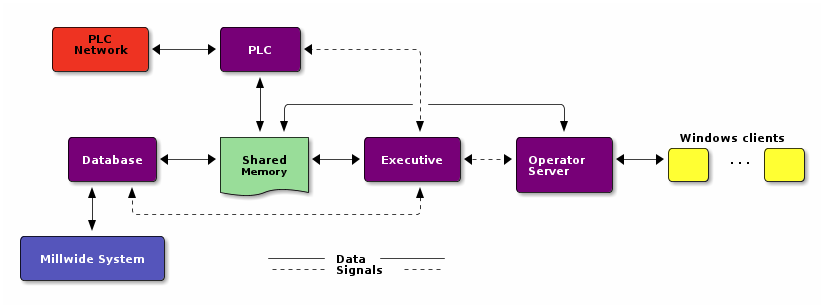
16.4. Playing with graphviz
Graphviz is another great tool for creating graphics in your documents.
The source for a graphviz graphic looks like this in org-mode:
#+begin_src dot :file some_filename.png :cmdline -Kdot -Tpng
  <context of graphviz source goes here>
#+end_src
digraph G {
  size="8,6"
  ratio=expand
  edge [dir=both]
  plcnet [shape=box, label="PLC Network"]
  subgraph cluster_wrapline {
    label="Wrapline Control System"
    color=purple
    subgraph {
    rank=same
    exec
    sharedmem [style=filled, fillcolor=lightgrey, shape=box]
    }
    edge[style=dotted, dir=none]
    exec -> opserver
    exec -> db
    plc -> exec
    edge [style=line, dir=both]
    exec -> sharedmem
    sharedmem -> db
    plc -> sharedmem
    sharedmem -> opserver
  }
  plcnet -> plc [constraint=false]
  millwide [shape=box, label="Millwide System"]
  db -> millwide

  subgraph cluster_opclients {
    color=blue
    label="Operator Clients"
    rankdir=LR
    labelloc=b
    node[label=client]
    opserver -> client1
    opserver -> client2
    opserver -> client3
  }
}
The -Kdot is optional (defaults to dot) but you can substitute other graphviz
types instead here (ie. twopi, neato, circo, etc).
16.5. Playing with PlantUML
I have just started using PlantUML which is built on top of Graphviz. I'm still experimenting with this but so far I like it a lot. The todo state change diagrams in this document are created with PlantUML.
The source for a PlantUML graphic looks like this in org-mode:
#+begin_src plantuml :file somefile.png
  <context of PlantUML source goes here>
#+end_src
16.5.1. Sequence Diagram
title Example Sequence Diagram
activate Client
Client -> Server: Session Initiation
note right: Client requests new session
activate Server
Client <-- Server: Authorization Request
note left: Server requires authentication
Client -> Server: Authorization Response
note right: Client provides authentication details
Server --> Client: Session Token
note left: Session established
deactivate Server
Client -> Client: Saves token
deactivate Client
16.5.2. Activity Diagram
title Example Activity Diagram
note right: Example Function
(*)--> "Step 1"
--> "Step 2"
-> "Step 3"
--> "Step 4"
--> === STARTLOOP ===
note top: For each element in the array
if "Are we done?" then
  -> [no] "Do this"
  -> "Do that"
  note bottom: Important note\ngoes here
  -up-> "Increment counters"
  --> === STARTLOOP ===
else
  --> [yes] === ENDLOOP ===
endif
--> "Last Step"
--> (*)
16.5.3. Usecase Diagram
LabUser --> (Runs Simulation)
LabUser --> (Analyses Results)
16.5.4. Object Diagram
@startuml
object Object01
object Object02
object Object03
object Object04
object Object05
object Object06
object Object07
object Object08

Object01 <|-- Object02
Object03 *-- Object04
Object05 o-- "4" Object06
Object07 .. Object08 : some labels
@enduml
16.5.5. State Diagram
[*] --> Start
Start -> State2
State2 -> State3
note right of State3: Notes can be\nattached to states
State2 --> State4
State4 -> Finish
State3 --> Finish
Finish --> [*]
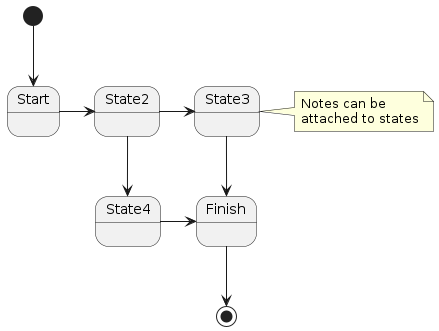
16.6. Publishing Single Files
Org-mode exports the current file to one of the standard formats by
invoking an export function. The standard key binding for this is
C-c C-e followed by the key for the type of export you want.
This works great for single files or parts of files – if you narrow the buffer to only part of the org-mode file then you only get the narrowed detail in the export.
16.7. Publishing Projects
I mainly use publishing for publishing multiple files or projects. I don't want to remember where the created export file needs to move to and org-mode projects are a great solution to this.
The http://doc.norang.ca website (and a bunch of other files that are not publicly available) are all created by editing org-mode files and publishing the project the file is contained in. This is great for people like me who want to figure out the details once and forget about it. I love stuff that Just Works(tm).
I have 5 main projects I use org-mode publishing for currently:
- norang (website)
- doc.norang.ca (website, published documents)
- doc.norang.ca/private (website, non-published documents)
- www.norang.ca/tmp (temporary publishing site for testing org-mode stuff)
- org files (which are selectively included by other websites)
Here's my publishing setup:
; experimenting with docbook exports - not finished
(setq org-export-docbook-xsl-fo-proc-command "fop %s %s")
(setq org-export-docbook-xslt-proc-command "xsltproc --output %s /usr/share/xml/docbook/stylesheet/nwalsh/fo/docbook.xsl %s")
;
; Inline images in HTML instead of producting links to the image
(setq org-html-inline-images t)
; Do not use sub or superscripts - I currently don't need this functionality in my documents
(setq org-export-with-sub-superscripts nil)
; Use org.css from the norang website for export document stylesheets
(setq org-html-head-extra "<link rel=\"stylesheet\" href=\"http://doc.norang.ca/org.css\" type=\"text/css\" />")
(setq org-html-head-include-default-style nil)
; Do not generate internal css formatting for HTML exports
(setq org-export-htmlize-output-type (quote css))
; Export with LaTeX fragments
(setq org-export-with-LaTeX-fragments t)
; Increase default number of headings to export
(setq org-export-headline-levels 6)

; List of projects
; norang       - http://www.norang.ca/
; doc          - http://doc.norang.ca/
; org-mode-doc - http://doc.norang.ca/org-mode.html and associated files
; org          - miscellaneous todo lists for publishing
(setq org-publish-project-alist
      ;
      ; http://www.norang.ca/  (norang website)
      ; norang-org are the org-files that generate the content
      ; norang-extra are images and css files that need to be included
      ; norang is the top-level project that gets published
      (quote (("norang-org"
               :base-directory "~/git/www.norang.ca"
               :publishing-directory "/ssh:www-data@www:~/www.norang.ca/htdocs"
               :recursive t
               :table-of-contents nil
               :base-extension "org"
               :publishing-function org-html-publish-to-html
               :style-include-default nil
               :section-numbers nil
               :table-of-contents nil
               :html-head "<link rel=\"stylesheet\" href=\"norang.css\" type=\"text/css\" />"
               :author-info nil
               :creator-info nil)
              ("norang-extra"
               :base-directory "~/git/www.norang.ca/"
               :publishing-directory "/ssh:www-data@www:~/www.norang.ca/htdocs"
               :base-extension "css\\|pdf\\|png\\|jpg\\|gif"
               :publishing-function org-publish-attachment
               :recursive t
               :author nil)
              ("norang"
               :components ("norang-org" "norang-extra"))
              ;
              ; http://doc.norang.ca/  (norang website)
              ; doc-org are the org-files that generate the content
              ; doc-extra are images and css files that need to be included
              ; doc is the top-level project that gets published
              ("doc-org"
               :base-directory "~/git/doc.norang.ca/"
               :publishing-directory "/ssh:www-data@www:~/doc.norang.ca/htdocs"
               :recursive nil
               :section-numbers nil
               :table-of-contents nil
               :base-extension "org"
               :publishing-function (org-html-publish-to-html org-org-publish-to-org)
               :style-include-default nil
               :html-head "<link rel=\"stylesheet\" href=\"/org.css\" type=\"text/css\" />"
               :author-info nil
               :creator-info nil)
              ("doc-extra"
               :base-directory "~/git/doc.norang.ca/"
               :publishing-directory "/ssh:www-data@www:~/doc.norang.ca/htdocs"
               :base-extension "css\\|pdf\\|png\\|jpg\\|gif"
               :publishing-function org-publish-attachment
               :recursive nil
               :author nil)
              ("doc"
               :components ("doc-org" "doc-extra"))
              ("doc-private-org"
               :base-directory "~/git/doc.norang.ca/private"
               :publishing-directory "/ssh:www-data@www:~/doc.norang.ca/htdocs/private"
               :recursive nil
               :section-numbers nil
               :table-of-contents nil
               :base-extension "org"
               :publishing-function (org-html-publish-to-html org-org-publish-to-org)
               :style-include-default nil
               :html-head "<link rel=\"stylesheet\" href=\"/org.css\" type=\"text/css\" />"
               :auto-sitemap t
               :sitemap-filename "index.html"
               :sitemap-title "Norang Private Documents"
               :sitemap-style "tree"
               :author-info nil
               :creator-info nil)
              ("doc-private-extra"
               :base-directory "~/git/doc.norang.ca/private"
               :publishing-directory "/ssh:www-data@www:~/doc.norang.ca/htdocs/private"
               :base-extension "css\\|pdf\\|png\\|jpg\\|gif"
               :publishing-function org-publish-attachment
               :recursive nil
               :author nil)
              ("doc-private"
               :components ("doc-private-org" "doc-private-extra"))
              ;
              ; Miscellaneous pages for other websites
              ; org are the org-files that generate the content
              ("org-org"
               :base-directory "~/git/org/"
               :publishing-directory "/ssh:www-data@www:~/org"
               :recursive t
               :section-numbers nil
               :table-of-contents nil
               :base-extension "org"
               :publishing-function org-html-publish-to-html
               :style-include-default nil
               :html-head "<link rel=\"stylesheet\" href=\"/org.css\" type=\"text/css\" />"
               :author-info nil
               :creator-info nil)
              ;
              ; http://doc.norang.ca/  (norang website)
              ; org-mode-doc-org this document
              ; org-mode-doc-extra are images and css files that need to be included
              ; org-mode-doc is the top-level project that gets published
              ; This uses the same target directory as the 'doc' project
              ("org-mode-doc-org"
               :base-directory "~/git/org-mode-doc/"
               :publishing-directory "/ssh:www-data@www:~/doc.norang.ca/htdocs"
               :recursive t
               :section-numbers nil
               :table-of-contents nil
               :base-extension "org"
               :publishing-function (org-html-publish-to-html)
               :plain-source t
               :htmlized-source t
               :style-include-default nil
               :html-head "<link rel=\"stylesheet\" href=\"/org.css\" type=\"text/css\" />"
               :author-info nil
               :creator-info nil)
              ("org-mode-doc-extra"
               :base-directory "~/git/org-mode-doc/"
               :publishing-directory "/ssh:www-data@www:~/doc.norang.ca/htdocs"
               :base-extension "css\\|pdf\\|png\\|jpg\\|gif\\|org"
               :publishing-function org-publish-attachment
               :recursive t
               :author nil)
              ("org-mode-doc"
               :components ("org-mode-doc-org" "org-mode-doc-extra"))
              ;
              ; http://doc.norang.ca/  (norang website)
              ; org-mode-doc-org this document
              ; org-mode-doc-extra are images and css files that need to be included
              ; org-mode-doc is the top-level project that gets published
              ; This uses the same target directory as the 'doc' project
              ("tmp-org"
               :base-directory "/tmp/publish/"
               :publishing-directory "/ssh:www-data@www:~/www.norang.ca/htdocs/tmp"
               :recursive t
               :section-numbers nil
               :table-of-contents nil
               :base-extension "org"
               :publishing-function (org-html-publish-to-html org-org-publish-to-org)
               :html-head "<link rel=\"stylesheet\" href=\"http://doc.norang.ca/org.css\" type=\"text/css\" />"
               :plain-source t
               :htmlized-source t
               :style-include-default nil
               :auto-sitemap t
               :sitemap-filename "index.html"
               :sitemap-title "Test Publishing Area"
               :sitemap-style "tree"
               :author-info t
               :creator-info t)
              ("tmp-extra"
               :base-directory "/tmp/publish/"
               :publishing-directory "/ssh:www-data@www:~/www.norang.ca/htdocs/tmp"
               :base-extension "css\\|pdf\\|png\\|jpg\\|gif"
               :publishing-function org-publish-attachment
               :recursive t
               :author nil)
              ("tmp"
               :components ("tmp-org" "tmp-extra")))))

; I'm lazy and don't want to remember the name of the project to publish when I modify
; a file that is part of a project.  So this function saves the file, and publishes
; the project that includes this file
;
; It's bound to C-S-F12 so I just edit and hit C-S-F12 when I'm done and move on to the next thing
(defun bh/save-then-publish (&optional force)
  (interactive "P")
  (save-buffer)
  (org-save-all-org-buffers)
  (let ((org-html-head-extra)
        (org-html-validation-link "<a href=\"http://validator.w3.org/check?uri=referer\">Validate XHTML 1.0</a>"))
    (org-publish-current-project force)))

(global-set-key (kbd "C-s-<f12>") 'bh/save-then-publish)
The main projects are norang, doc, doc-private, org-mode-doc,
and tmp. These projects publish directly to the webserver directory
on a remote web server that serves the site. Publishing one of these
projects exports all modified pages, generates images, and copies the
resulting files to the webserver so that they are immediately
available for viewing.
The http://doc.norang.ca/ site contains subdirectories with client and
private documentation that are restricted by using Apache Basic
authentication. I don't create links to these sites from the publicly
viewable pages. http://doc.norang.ca/someclient/ would show the index
for any org files under ~/git/doc.norang.ca/someclient/ if that is
set up as a viewable website. I use most of the information myself
but give access to clients if they are interested in the
information/notes that I keep about their systems.
This works great for me - I know where my notes are and I can access them from anywhere on the internet. I'm also free to share notes with other people by simply giving them the link to the appropriate site.
All I need to remember to do is edit the appropriate org file and publish it with C-S-F12 – not exactly hard :)
I added a temporary publishing site for testing exports and
validation. This is the tmp site which takes files from
/tmp/publish and exports those files to a website publishing
directory. This makes it easy to try new throw-away things on a live
server.
16.8. Miscellaneous Export Settings
This is a collection of export and publishing related settings that I use.
16.8.1. Fontify Latex listings for source blocks
For export to latex I use the following setting to get fontified listings from source blocks:
(setq org-latex-listings t)
16.8.2. Export HTML without XML header
I use the following setting to remove the xml header line for HTML exports. This xml line was confusing Open Office when opening the HTML to convert to ODT.
(setq org-html-xml-declaration (quote (("html" . "")
                                       ("was-html" . "<?xml version=\"1.0\" encoding=\"%s\"?>")
                                       ("php" . "<?php echo \"<?xml version=\\\"1.0\\\" encoding=\\\"%s\\\" ?>\"; ?>"))))
16.8.3. Allow binding variables on export without confirmation
The following setting allows #+BIND: variables to be set on export without confirmation. In rare situations where I want to override some org-mode variable for export this allows exporting the document without a prompt.
(setq org-export-allow-BIND t)
17. Reminders
I use appt for reminders. It's simple and unobtrusive – putting pending appointments in the status bar and beeping as 12, 9, 6, 3, and 0 minutes before the appointment is due.
Everytime the agenda is displayed (and that's lots for me) the appointment list is erased and rebuilt from the current agenda details for today. This means everytime I reschedule something, add or remove tasks that are time related the appointment list is automatically updated the next time I look at the agenda.
17.1. Reminder Setup
; Erase all reminders and rebuilt reminders for today from the agenda
(defun bh/org-agenda-to-appt ()
  (interactive)
  (setq appt-time-msg-list nil)
  (org-agenda-to-appt))

; Rebuild the reminders everytime the agenda is displayed
(add-hook 'org-agenda-finalize-hook 'bh/org-agenda-to-appt 'append)

; This is at the end of my .emacs - so appointments are set up when Emacs starts
(bh/org-agenda-to-appt)

; Activate appointments so we get notifications
(appt-activate t)

; If we leave Emacs running overnight - reset the appointments one minute after midnight
(run-at-time "24:01" nil 'bh/org-agenda-to-appt)
18. Productivity Tools
This section is a miscellaneous collection of Emacs customizations that I use with org-mode so that it Works-For-Me(tm).
18.1. Abbrev-mode and Skeletons
I use skeletons with abbrev-mode to quickly add preconfigured blocks to my Emacs edit buffers.
I have blocks for creating:
- generic blocks in org-mode
- plantuml blocks in org-mode
- plantuml activity diagram block in org-mode
- plantuml sequence diagram block in org-mode
- graphviz dot blocks in org-mode
- ditaa blocks in org-mode
- elisp source blocks in org-mode
I still use < e TAB and < s TAB for creating example blocks and
simple shell script blocks that need no further parameters.
Here's my current setup for org-mode related skeletons. Each one
defines an abbrev-mode shortcut so I can type splantumlRET to create
a Plantuml block. This prompts for the filename (without extension) for
the generated image file.
At work I add a :tangle header to the skeleton and explicitly
include the @startuml and @enduml marker lines in the skeleton so
I can tangle the source file and share it with my colleagues. This
makes the tangled source useable in Notepad and the PlantUML jar
file running standalone.
I have put the s (src) prefix on the shortcuts to prevent
abbrev-mode from trying to expand PlantUML when I'm typing it in a
sentence.
For convenience in activity diagrams I added sif and sfor and just
change the labels for the synchronization bars.
;; Enable abbrev-mode
(add-hook 'org-mode-hook (lambda () (abbrev-mode 1)))

;; Skeletons
;;
;; sblk - Generic block #+begin_FOO .. #+end_FOO
(define-skeleton skel-org-block
  "Insert an org block, querying for type."
  "Type: "
  "#+begin_" str "\n"
  _ - \n
  "#+end_" str "\n")

(define-abbrev org-mode-abbrev-table "sblk" "" 'skel-org-block)

;; splantuml - PlantUML Source block
(define-skeleton skel-org-block-plantuml
  "Insert a org plantuml block, querying for filename."
  "File (no extension): "
  "#+begin_src plantuml :file " str ".png :cache yes\n"
  _ - \n
  "#+end_src\n")

(define-abbrev org-mode-abbrev-table "splantuml" "" 'skel-org-block-plantuml)

(define-skeleton skel-org-block-plantuml-activity
  "Insert a org plantuml block, querying for filename."
  "File (no extension): "
  "#+begin_src plantuml :file " str "-act.png :cache yes :tangle " str "-act.txt\n"
  (bh/plantuml-reset-counters)
  "@startuml\n"
  "skinparam activity {\n"
  "BackgroundColor<<New>> Cyan\n"
  "}\n\n"
  "title " str " - \n"
  "note left: " str "\n"
  "(*) --> \"" str "\"\n"
  "--> (*)\n"
  _ - \n
  "@enduml\n"
  "#+end_src\n")

(defvar bh/plantuml-if-count 0)

(defun bh/plantuml-if ()
  (incf bh/plantuml-if-count)
  (number-to-string bh/plantuml-if-count))

(defvar bh/plantuml-loop-count 0)

(defun bh/plantuml-loop ()
  (incf bh/plantuml-loop-count)
  (number-to-string bh/plantuml-loop-count))

(defun bh/plantuml-reset-counters ()
  (setq bh/plantuml-if-count 0
        bh/plantuml-loop-count 0)
  "")

(define-abbrev org-mode-abbrev-table "sact" "" 'skel-org-block-plantuml-activity)

(define-skeleton skel-org-block-plantuml-activity-if
  "Insert a org plantuml block activity if statement"
  ""
  "if \"\" then\n"
  "  -> [condition] ==IF" (setq ifn (bh/plantuml-if)) "==\n"
  "  --> ==IF" ifn "M1==\n"
  "  -left-> ==IF" ifn "M2==\n"
  "else\n"
  "end if\n"
  "--> ==IF" ifn "M2==")

(define-abbrev org-mode-abbrev-table "sif" "" 'skel-org-block-plantuml-activity-if)

(define-skeleton skel-org-block-plantuml-activity-for
  "Insert a org plantuml block activity for statement"
  "Loop for each: "
  "--> ==LOOP" (setq loopn (bh/plantuml-loop)) "==\n"
  "note left: Loop" loopn ": For each " str "\n"
  "--> ==ENDLOOP" loopn "==\n"
  "note left: Loop" loopn ": End for each " str "\n" )

(define-abbrev org-mode-abbrev-table "sfor" "" 'skel-org-block-plantuml-activity-for)

(define-skeleton skel-org-block-plantuml-sequence
  "Insert a org plantuml activity diagram block, querying for filename."
  "File appends (no extension): "
  "#+begin_src plantuml :file " str "-seq.png :cache yes :tangle " str "-seq.txt\n"
  "@startuml\n"
  "title " str " - \n"
  "actor CSR as \"Customer Service Representative\"\n"
  "participant CSMO as \"CSM Online\"\n"
  "participant CSMU as \"CSM Unix\"\n"
  "participant NRIS\n"
  "actor Customer"
  _ - \n
  "@enduml\n"
  "#+end_src\n")

(define-abbrev org-mode-abbrev-table "sseq" "" 'skel-org-block-plantuml-sequence)

;; sdot - Graphviz DOT block
(define-skeleton skel-org-block-dot
  "Insert a org graphviz dot block, querying for filename."
  "File (no extension): "
  "#+begin_src dot :file " str ".png :cache yes :cmdline -Kdot -Tpng\n"
  "graph G {\n"
  _ - \n
  "}\n"
  "#+end_src\n")

(define-abbrev org-mode-abbrev-table "sdot" "" 'skel-org-block-dot)

;; sditaa - Ditaa source block
(define-skeleton skel-org-block-ditaa
  "Insert a org ditaa block, querying for filename."
  "File (no extension): "
  "#+begin_src ditaa :file " str ".png :cache yes\n"
  _ - \n
  "#+end_src\n")

(define-abbrev org-mode-abbrev-table "sditaa" "" 'skel-org-block-ditaa)

;; selisp - Emacs Lisp source block
(define-skeleton skel-org-block-elisp
  "Insert a org emacs-lisp block"
  ""
  "#+begin_src emacs-lisp\n"
  _ - \n
  "#+end_src\n")

(define-abbrev org-mode-abbrev-table "selisp" "" 'skel-org-block-elisp)
I also use abbrev-mode when taking notes at work. I tend to write 'i'
followed by initials for people which get expanded to their complete
name in my notes. So if I write imm it gets automatically
expanded to Mickey Mouse as I type. To create an abbreviation just
type in the short form followed by C-x a i l to create an
abbreviation for the current mode I'm in.
The only thing you have to be careful with is not to use a common word for your
abbreviation since abbrev-mode will try to expand it everytime you enter it.
I found this annoying when I used plantuml as one of my abbreviations.
I also use skeletons and abbrev-mode for C source files at work. This works really well for me.
18.1.1. Example PlantUml Activity Diagram Generation
When creating activity diagrams I can use 'sif' and 'sfor' to add IF and FOR blocks to the diagram with unique numbering automatically generated.
Example: Create a new diagram and enter 2 IFs and 2 FOR blocks
Create diagram: "sact RET test RET"
gives
@startuml
skinparam activity {
BackgroundColor<<New>> Cyan
}

title test -
note left: test
(*) --> "test"
--> (*)

@enduml
Put cursor on –> (*) and enter "sif RET"
gives
@startuml
skinparam activity {
BackgroundColor<<New>> Cyan
}

title test -
note left: test
(*) --> "test"
if "" then
  -> [condition] ==IF1==
  --> ==IF1M1==
  -left-> ==IF1M2==
else
end if
--> ==IF1M2==
--> (*)

@enduml
repeat on –> (*) line
gives
@startuml
skinparam activity {
BackgroundColor<<New>> Cyan
}

title test -
note left: test
(*) --> "test"
if "" then
  -> [condition] ==IF1==
  --> ==IF1M1==
  -left-> ==IF1M2==
else
end if
--> ==IF1M2==
if "" then
  -> [condition] ==IF2==
  --> ==IF2M1==
  -left-> ==IF2M2==
else
end if
--> ==IF2M2==
--> (*)

@enduml
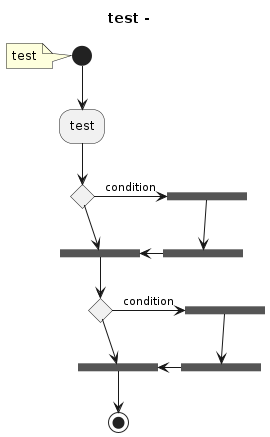
and add two for loops at the end with "sfor RET line in file RET" and "sfor RET address in addressbook RET"
gives
@startuml
skinparam activity {
BackgroundColor<<New>> Cyan
}

title test -
note left: test
(*) --> "test"
if "" then
  -> [condition] ==IF1==
  --> ==IF1M1==
  -left-> ==IF1M2==
else
end if
--> ==IF1M2==
if "" then
  -> [condition] ==IF2==
  --> ==IF2M1==
  -left-> ==IF2M2==
else
end if
--> ==IF2M2==
--> ==LOOP1==
note left: Loop1: For each line in file
--> ==ENDLOOP1==
note left: Loop1: End for each line in file
--> ==LOOP2==
note left: Loop2: For each address in addressbook
--> ==ENDLOOP2==
note left: Loop2: End for each address in addressbook

--> (*)

@enduml
I use rectangular cut and paste if I need to indent generated blocks.
18.2. Focus On Current Work
There is more than one way to do this. Use what works for you.
18.2.1. Narrowing to a subtree with bh/org-todo
f5 and S-f5 are bound the functions for narrowing and widening the
emacs buffer as defined below.
We now use:
- T (tasks) for C-c / t on the current buffer
- N (narrow) narrows to this task subtree
- U (up) narrows to the immediate parent task subtree without moving
- P (project) narrows to the parent project subtree without moving
- F (file) narrows to the current file or file of the existing restriction
The agenda keeps widening the org buffer so this gives a convenient way to focus on what we are doing.
(global-set-key (kbd "<f5>") 'bh/org-todo)

(defun bh/org-todo (arg)
  (interactive "p")
  (if (equal arg 4)
      (save-restriction
        (bh/narrow-to-org-subtree)
        (org-show-todo-tree nil))
    (bh/narrow-to-org-subtree)
    (org-show-todo-tree nil)))

(global-set-key (kbd "<S-f5>") 'bh/widen)

(defun bh/widen ()
  (interactive)
  (if (equal major-mode 'org-agenda-mode)
      (progn
        (org-agenda-remove-restriction-lock)
        (when org-agenda-sticky
          (org-agenda-redo)))
    (widen)))

(add-hook 'org-agenda-mode-hook
          '(lambda () (org-defkey org-agenda-mode-map "W" (lambda () (interactive) (setq bh/hide-scheduled-and-waiting-next-tasks t) (bh/widen))))
          'append)

(defun bh/restrict-to-file-or-follow (arg)
  "Set agenda restriction to 'file or with argument invoke follow mode.
I don't use follow mode very often but I restrict to file all the time
so change the default 'F' binding in the agenda to allow both"
  (interactive "p")
  (if (equal arg 4)
      (org-agenda-follow-mode)
    (widen)
    (bh/set-agenda-restriction-lock 4)
    (org-agenda-redo)
    (beginning-of-buffer)))

(add-hook 'org-agenda-mode-hook
          '(lambda () (org-defkey org-agenda-mode-map "F" 'bh/restrict-to-file-or-follow))
          'append)

(defun bh/narrow-to-org-subtree ()
  (widen)
  (org-narrow-to-subtree)
  (save-restriction
    (org-agenda-set-restriction-lock)))

(defun bh/narrow-to-subtree ()
  (interactive)
  (if (equal major-mode 'org-agenda-mode)
      (progn
        (org-with-point-at (org-get-at-bol 'org-hd-marker)
          (bh/narrow-to-org-subtree))
        (when org-agenda-sticky
          (org-agenda-redo)))
    (bh/narrow-to-org-subtree)))

(add-hook 'org-agenda-mode-hook
          '(lambda () (org-defkey org-agenda-mode-map "N" 'bh/narrow-to-subtree))
          'append)

(defun bh/narrow-up-one-org-level ()
  (widen)
  (save-excursion
    (outline-up-heading 1 'invisible-ok)
    (bh/narrow-to-org-subtree)))

(defun bh/get-pom-from-agenda-restriction-or-point ()
  (or (and (marker-position org-agenda-restrict-begin) org-agenda-restrict-begin)
      (org-get-at-bol 'org-hd-marker)
      (and (equal major-mode 'org-mode) (point))
      org-clock-marker))

(defun bh/narrow-up-one-level ()
  (interactive)
  (if (equal major-mode 'org-agenda-mode)
      (progn
        (org-with-point-at (bh/get-pom-from-agenda-restriction-or-point)
          (bh/narrow-up-one-org-level))
        (org-agenda-redo))
    (bh/narrow-up-one-org-level)))

(add-hook 'org-agenda-mode-hook
          '(lambda () (org-defkey org-agenda-mode-map "U" 'bh/narrow-up-one-level))
          'append)

(defun bh/narrow-to-org-project ()
  (widen)
  (save-excursion
    (bh/find-project-task)
    (bh/narrow-to-org-subtree)))

(defun bh/narrow-to-project ()
  (interactive)
  (if (equal major-mode 'org-agenda-mode)
      (progn
        (org-with-point-at (bh/get-pom-from-agenda-restriction-or-point)
          (bh/narrow-to-org-project)
          (save-excursion
            (bh/find-project-task)
            (org-agenda-set-restriction-lock)))
        (org-agenda-redo)
        (beginning-of-buffer))
    (bh/narrow-to-org-project)
    (save-restriction
      (org-agenda-set-restriction-lock))))

(add-hook 'org-agenda-mode-hook
          '(lambda () (org-defkey org-agenda-mode-map "P" 'bh/narrow-to-project))
          'append)

(defvar bh/project-list nil)

(defun bh/view-next-project ()
  (interactive)
  (let (num-project-left current-project)
    (unless (marker-position org-agenda-restrict-begin)
      (goto-char (point-min))
      ; Clear all of the existing markers on the list
      (while bh/project-list
        (set-marker (pop bh/project-list) nil))
      (re-search-forward "Tasks to Refile")
      (forward-visible-line 1))

    ; Build a new project marker list
    (unless bh/project-list
      (while (< (point) (point-max))
        (while (and (< (point) (point-max))
                    (or (not (org-get-at-bol 'org-hd-marker))
                        (org-with-point-at (org-get-at-bol 'org-hd-marker)
                          (or (not (bh/is-project-p))
                              (bh/is-project-subtree-p)))))
          (forward-visible-line 1))
        (when (< (point) (point-max))
          (add-to-list 'bh/project-list (copy-marker (org-get-at-bol 'org-hd-marker)) 'append))
        (forward-visible-line 1)))

    ; Pop off the first marker on the list and display
    (setq current-project (pop bh/project-list))
    (when current-project
      (org-with-point-at current-project
        (setq bh/hide-scheduled-and-waiting-next-tasks nil)
        (bh/narrow-to-project))
      ; Remove the marker
      (setq current-project nil)
      (org-agenda-redo)
      (beginning-of-buffer)
      (setq num-projects-left (length bh/project-list))
      (if (> num-projects-left 0)
          (message "%s projects left to view" num-projects-left)
        (beginning-of-buffer)
        (setq bh/hide-scheduled-and-waiting-next-tasks t)
        (error "All projects viewed.")))))

(add-hook 'org-agenda-mode-hook
          '(lambda () (org-defkey org-agenda-mode-map "V" 'bh/view-next-project))
          'append)
This makes it easy to hide all of the other details in your org-file temporarily by limiting your view to this task subtree. Tasks are folded and hilighted so that only tasks which are incomplete are shown.
I hit f5 (or the T speed key) a lot. This basically does a
org-narrow-to-subtree and C-c / t combination leaving the buffer
in a narrowed state. I use S-f5 (or some other widening speed key
like U, W, F) to widen back to the normal view.
I also have the following setting to force showing the next headline.
(setq org-show-entry-below (quote ((default))))
This prevents too many headlines from being folded together when I'm working with collapsed trees.
18.2.2. Limiting the agenda to a subtree
C-c C-x < turns on the agenda restriction lock for the current
subtree. This keeps your agenda focused on only this subtree. Alarms
and notifications are still active outside the agenda restriction.
C-c C-x > turns off the agenda restriction lock returning your
agenda view back to normal.
I have added key bindings for the agenda to allow using C-c C-x < in
the agenda to set the restriction lock to the current task directly.
The following elisp accomplishes this.
(add-hook 'org-agenda-mode-hook
          '(lambda () (org-defkey org-agenda-mode-map "\C-c\C-x<" 'bh/set-agenda-restriction-lock))
          'append)

(defun bh/set-agenda-restriction-lock (arg)
  "Set restriction lock to current task subtree or file if prefix is specified"
  (interactive "p")
  (let* ((pom (bh/get-pom-from-agenda-restriction-or-point))
         (tags (org-with-point-at pom (org-get-tags-at))))
    (let ((restriction-type (if (equal arg 4) 'file 'subtree)))
      (save-restriction
        (cond
         ((and (equal major-mode 'org-agenda-mode) pom)
          (org-with-point-at pom
            (org-agenda-set-restriction-lock restriction-type))
          (org-agenda-redo))
         ((and (equal major-mode 'org-mode) (org-before-first-heading-p))
          (org-agenda-set-restriction-lock 'file))
         (pom
          (org-with-point-at pom
            (org-agenda-set-restriction-lock restriction-type))))))))
This allows me to set the restriction lock from agenda to task directly. I work from the agenda a lot and I find this very convenient.
Setting the restriction directly to the task is less surprising than automatically moving up the tree to the project level task – which is what I was doing before. If the select task is too restrictive it's easy to move the restriction lock up a level by visiting the task in the org file and going up and resetting the lock - in case you want to see move of the project.
Selecting the entire project sometimes has too many tasks in it and I
want to limit the view to part of the subtree. This is why I keep the N and
U key bindings for adjusting the narrowed region.
I've added new convenience keys for restricting the agenda and org-buffer to subtree, parent task, and project task, as well as removing the restriction. These keys work both in the agenda and as speed commands on a headline in the org-file.
Nnarrows to the current task subtreeThis is the same as same as
C-c C-x <Unarrows to the parent subtree of this taskThis goes up one level and narrows to that subtree.
Pnarrows to the entire project containing this taskThis goes up the tree to the top-level
TODOkeyword and selects that as the subtree to narrow toWremoves the restriction, widening the buffer
I like the highlighting for a restriction to only affect the headline and not the entire body of the agenda restriction. I use the following setting to keep the highlight on the heading only (as was the case for pre-8.0 versions of org-mode)
;; Limit restriction lock highlighting to the headline only
(setq org-agenda-restriction-lock-highlight-subtree nil)
18.2.3. Limiting the agenda to a file
You can limit the agenda view to a single file in multiple ways.
You can use the agenda restriction lock C-c C-x < on the any
line before the first heading to set the agenda restriction lock
to this file only. This is equivalent using a prefix argumment
(C-u C-c C-x <) anywhere in the file. This lock stays in
effect until you remove it with C-c C-x >.
This also works in the agenda with my C-u C-c c-x < key binding.
Another way is to invoke the agenda with F12 < a while visiting an
org-mode file. This limits the agenda view to just this file. I
occasionally use this to view a file not in my org-agenda-files in
the agenda.
18.3. Tuning the Agenda Views
Various customizations affect how the agenda views show task details. This section shows each of the customizations I use in my workflow.
18.3.1. Highlight the current agenda line
The following code in my .emacs file keeps the current agenda line
highlighted. This makes it obvious what task will be affected by
commands issued in the agenda. No more acting on the wrong task by
mistake!
The clock modeline time is also shown with a reverse background.
;; Always hilight the current agenda line
(add-hook 'org-agenda-mode-hook
          '(lambda () (hl-line-mode 1))
          'append)
;; The following custom-set-faces create the highlights
(custom-set-faces
  ;; custom-set-faces was added by Custom.
  ;; If you edit it by hand, you could mess it up, so be careful.
  ;; Your init file should contain only one such instance.
  ;; If there is more than one, they won't work right.
 '(org-mode-line-clock ((t (:background "grey75" :foreground "red" :box (:line-width -1 :style released-button)))) t))
18.3.2. Keep tasks with timestamps visible on the global todo lists
Tasks with dates (SCHEDULED:, DEADLINE:, or active dates) show up
in the agenda when appropriate. The block agenda view (F12 a) tries
to keep tasks showing up only in one location (either in the calendar
or other todo lists in later sections of the block agenda.) I now
rarely use the global todo list search in org-mode (F12 t, F12 m)
and when I do I'm trying to find a specific task quickly. These lists
now include everything so I can just search for the item I want and
move on.
The block agenda prevents display of tasks with deadlines or scheduled dates in the future so you can safely ignore these until the appropriate time.
;; Keep tasks with dates on the global todo lists
(setq org-agenda-todo-ignore-with-date nil)

;; Keep tasks with deadlines on the global todo lists
(setq org-agenda-todo-ignore-deadlines nil)

;; Keep tasks with scheduled dates on the global todo lists
(setq org-agenda-todo-ignore-scheduled nil)

;; Keep tasks with timestamps on the global todo lists
(setq org-agenda-todo-ignore-timestamp nil)

;; Remove completed deadline tasks from the agenda view
(setq org-agenda-skip-deadline-if-done t)

;; Remove completed scheduled tasks from the agenda view
(setq org-agenda-skip-scheduled-if-done t)

;; Remove completed items from search results
(setq org-agenda-skip-timestamp-if-done t)
18.3.3. Use the Diary for Holidays and Appointments
I don't use the emacs Diary for anything but I like seeing the holidays on my agenda. This helps with planning for those days when you're not supposed to be working.
(setq org-agenda-include-diary nil)
(setq org-agenda-diary-file "~/git/org/diary.org")
The diary file keeps date-tree entries created by the capture mode
'appointment' template. I use this also for miscellaneous tasks I
want to clock during interruptions.
I don't use a ~/diary file anymore. That is just there as a
zero-length file to keep Emacs happy. I use org-mode's diary
functions instead. Inserting entries with i in the emacs agenda
creates date entries in the ~/git/org/diary.org file.
I include holidays from the calendar in my todo.org file as follows:
#+FILETAGS: PERSONAL
* Appointments
  :PROPERTIES:
  :CATEGORY: Appt
  :ARCHIVE:  %s_archive::* Appointments
  :END:
** Holidays
   :PROPERTIES:
   :Category: Holiday
   :END:
   %%(org-calendar-holiday)
** Some other Appointment
   ...
I use the following setting so any time strings in the heading are shown in the agenda.
(setq org-agenda-insert-diary-extract-time t)
18.3.4. Searches include archive files
I keep a single archive file for each of my org-mode project files. This allows me to search the current file and the archive when I need to dig up old information from the archives.
I don't need this often but it sure is handy on the occasions that I do need it.
;; Include agenda archive files when searching for things
(setq org-agenda-text-search-extra-files (quote (agenda-archives)))
18.3.5. Agenda view tweaks
The following agenda customizations control
- display of repeating tasks
- display of empty dates on the agenda
- task sort order
- start the agenda weekly view with Sunday
- display of the grid
- habits at the bottom
I use a custom sorting function so that my daily agenda lists tasks in order of importance. Tasks on the daily agenda are listed in the following order:
- tasks with times at the top so they are hard to miss
- entries for today (active timestamp headlines that are not scheduled or deadline tasks)
- deadlines due today
- late deadline tasks
- scheduled items for today
- pending deadlines (due soon)
- late scheduled items
- habits
The lisp for this isn't particularly pretty but it works.
Here are the .emacs settings:
;; Show all future entries for repeating tasks
(setq org-agenda-repeating-timestamp-show-all t)

;; Show all agenda dates - even if they are empty
(setq org-agenda-show-all-dates t)

;; Sorting order for tasks on the agenda
(setq org-agenda-sorting-strategy
      (quote ((agenda habit-down time-up user-defined-up effort-up category-keep)
              (todo category-up effort-up)
              (tags category-up effort-up)
              (search category-up))))

;; Start the weekly agenda on Monday
(setq org-agenda-start-on-weekday 1)

;; Enable display of the time grid so we can see the marker for the current time
(setq org-agenda-time-grid (quote ((daily today remove-match)
                                   #("----------------" 0 16 (org-heading t))
                                   (0900 1100 1300 1500 1700))))

;; Display tags farther right
(setq org-agenda-tags-column -102)

;;
;; Agenda sorting functions
;;
(setq org-agenda-cmp-user-defined 'bh/agenda-sort)

(defun bh/agenda-sort (a b)
  "Sorting strategy for agenda items.
Late deadlines first, then scheduled, then non-late deadlines"
  (let (result num-a num-b)
    (cond
     ; time specific items are already sorted first by org-agenda-sorting-strategy

     ; non-deadline and non-scheduled items next
     ((bh/agenda-sort-test 'bh/is-not-scheduled-or-deadline a b))

     ; deadlines for today next
     ((bh/agenda-sort-test 'bh/is-due-deadline a b))

     ; late deadlines next
     ((bh/agenda-sort-test-num 'bh/is-late-deadline '> a b))

     ; scheduled items for today next
     ((bh/agenda-sort-test 'bh/is-scheduled-today a b))

     ; late scheduled items next
     ((bh/agenda-sort-test-num 'bh/is-scheduled-late '> a b))

     ; pending deadlines last
     ((bh/agenda-sort-test-num 'bh/is-pending-deadline '< a b))

     ; finally default to unsorted
     (t (setq result nil)))
    result))

(defmacro bh/agenda-sort-test (fn a b)
  "Test for agenda sort"
  `(cond
    ; if both match leave them unsorted
    ((and (apply ,fn (list ,a))
          (apply ,fn (list ,b)))
     (setq result nil))
    ; if a matches put a first
    ((apply ,fn (list ,a))
     (setq result -1))
    ; otherwise if b matches put b first
    ((apply ,fn (list ,b))
     (setq result 1))
    ; if none match leave them unsorted
    (t nil)))

(defmacro bh/agenda-sort-test-num (fn compfn a b)
  `(cond
    ((apply ,fn (list ,a))
     (setq num-a (string-to-number (match-string 1 ,a)))
     (if (apply ,fn (list ,b))
         (progn
           (setq num-b (string-to-number (match-string 1 ,b)))
           (setq result (if (apply ,compfn (list num-a num-b))
                            -1
                          1)))
       (setq result -1)))
    ((apply ,fn (list ,b))
     (setq result 1))
    (t nil)))

(defun bh/is-not-scheduled-or-deadline (date-str)
  (and (not (bh/is-deadline date-str))
       (not (bh/is-scheduled date-str))))

(defun bh/is-due-deadline (date-str)
  (string-match "Deadline:" date-str))

(defun bh/is-late-deadline (date-str)
  (string-match "\\([0-9]*\\) d\. ago:" date-str))

(defun bh/is-pending-deadline (date-str)
  (string-match "In \\([^-]*\\)d\.:" date-str))

(defun bh/is-deadline (date-str)
  (or (bh/is-due-deadline date-str)
      (bh/is-late-deadline date-str)
      (bh/is-pending-deadline date-str)))

(defun bh/is-scheduled (date-str)
  (or (bh/is-scheduled-today date-str)
      (bh/is-scheduled-late date-str)))

(defun bh/is-scheduled-today (date-str)
  (string-match "Scheduled:" date-str))

(defun bh/is-scheduled-late (date-str)
  (string-match "Sched\.\\(.*\\)x:" date-str))
18.3.6. Sticky Agendas
Sticky agendas allow you to have more than one agenda view created simultaneously.
You can quickly switch to the view without incurring an agenda rebuild by invoking
the agenda custom command key that normally generates the agenda. If it already
exists it will display the existing view. g forces regeneration of the agenda view.
I normally have two views displayed (F12 a for the daily/weekly
agenda and F12 SPC for my project management view)
;; Use sticky agenda's so they persist
(setq org-agenda-sticky t)
18.4. Checklist handling
Checklists are great for repeated tasks with lots of things that need
to be done. For a long time I was manually resetting the check boxes
to unchecked when marking the repeated task DONE but no more!
There's a contributed org-checklist that can uncheck the boxes
automagically when the task is marked done.
Add the following to your .emacs
(add-to-list 'load-path (expand-file-name "~/git/org-mode/contrib/lisp"))

(require 'org-checklist)
and then to use it in a task you simply set the property RESET_CHECK_BOXES to t
like this
* TODO Invoicing and Archive Tasks [0/7]
  DEADLINE: <2009-07-01 Wed +1m -0d>
  :PROPERTIES:
  :RESET_CHECK_BOXES: t
  :END:

  - [ ] Do task 1
  - [ ] Do task 2
  ...
  - [ ] Do task 7
18.5. Backups
Backups that you have to work hard at don't get done.
I lost a bunch of data over 10 years ago due to not having a working
backup solution. At the time I said I'm not going to lose any
important data ever again. So far so good :)
My backups get done religiously. What does this have to do with org-mode? Not much really, other than I don't spend time doing backups – they just happen – which saves me time for other more interesting things.
My backup philosophy is to make it possible to recover your data – not necessarily easy. It doesn't have to be easy/fast to do the recovery because I'll rarely have to recover data from the backups. Saving time for recovery doesn't make sense to me. I want the backup to be fast and painless since I do those all the time.
I set up an automated network backup over 10 years ago that is still serving me well today. All of my systems gets daily backups to a network drive. These are collected monthly and written to an external removable USB disk.
Once a month my task for backups prompts me to move the current collection of montly backups to the USB drive for external storage. Backups take minimal effort currently and I'm really happy about that.
Since then git came into my life, so backups of git repositories
that are on multiple machines is much less critical than it used to
be. There is an automatic backup of everything pushed to the remote
repository.
18.6. Handling blocked tasks
Blocked tasks are tasks that have subtasks which are not in a done todo state. Blocked tasks show up in a grayed font by default in the agenda.
To enable task blocking set the following variable:
(setq org-enforce-todo-dependencies t)
This setting prevents tasks from changing to DONE if any subtasks
are still open. This works pretty well except for repeating tasks. I
find I'm regularly adding TODO tasks under repeating tasks and not
all of the subtasks need to be complete before the next repeat cycle.
You can override the setting temporarily by changing the task with
C-u C-u C-u C-c C-t but I never remember that. I set a permanent
property on the repeated tasks as follows:
* TODO New Repeating Task
  SCHEDULED: <2009-06-16 Tue +1w>
  :PROPERTIES:
  :NOBLOCKING: t
  :END:
  ...
** TODO Subtask
This prevents the New Repeating Task from being blocked if some of
the items under it are not complete.
Occassionally I need to complete tasks in a given order. Org-mode has
a property ORDERED that enforces this for subtasks.
* TODO Some Task
  :PROPERTIES:
  :ORDERED: t
  :END:
** TODO Step 1
** TODO Step 2
** TODO Step 3
In this case you need to complete Step 1 before you can complete
Step 2, etc. and org-mode prevents the state change to a done task
until the preceding tasks are complete.
18.7. Org Task structure and presentation
This section describes various org-mode settings I use to control how tasks are displayed while I work on my org mode files.
18.7.1. Controlling display of leading stars on headlines
Org-mode has the ability to show or hide the leading stars on task headlines. It's also possible to have headlines at odd levels only so that the stars and heading task names line up in sublevels.
To make org show leading stars use
(setq org-hide-leading-stars nil)
I now use org-indent mode which hides leading stars.
18.7.2. org-indent mode
I recently started using org-indent mode. I like this setting a lot. It removes the indentation in the org-file but displays it as if it was indented while you are working on the org file buffer.
org-indent mode displays as if org-odd-levels-only is true but it has a really clean look that I prefer over my old setup.
I have org-indent mode on by default at startup with the following setting:
(setq org-startup-indented t)
18.7.3. Handling blank lines
Blank lines are evil :). They keep getting inserted in between
headlines and I don't want to see them in collapsed (contents) views.
When I use TAB to fold (cycle) tasks I don't want to see any blank
lines between headings.
The following setting hides blank lines between headings which keeps folded view nice and compact.
(setq org-cycle-separator-lines 0)
I find extra blank lines in lists and headings a bit of a nuisance. To get a body after a list you need to include a blank line between the list entry and the body – and indent the body appropriately. Most of my lists have no body detail so I like the look of collapsed lists with no blank lines better.
The following setting prevents creating blank lines before headings but allows list items to adapt to existing blank lines around the items:
(setq org-blank-before-new-entry (quote ((heading)
                                         (plain-list-item . auto))))
18.7.4. Adding new tasks quickly without disturbing the current task content
To create new headings in a project file it is really convenient to
use C-RET, C-S-RET, M-RET, and M-S-RET. This inserts a new headline
possibly with a TODO keyword. With the following setting
(setq org-insert-heading-respect-content nil)
org inserts the heading at point for the M- versions and respects
content for the C- versions. The respect content setting is
temporarily turned on for the C- versions which adds the new heading
after the content of the current item. This lets you hit C-S-RET in
the middle of an entry and the new heading is added after the body of
the current entry but still allow you to split an entry in the middle
with M-S-RET.
18.7.5. Notes at the top
I enter notes for tasks with C-c C-z (or just z in the agenda).
Changing tasks states also sometimes prompt for a note (e.g. moving to
WAITING prompts for a note and I enter a reason for why it is
waiting). These notes are saved at the top of the task so unfolding
the task shows the note first.
(setq org-reverse-note-order nil)
18.7.6. Searching and showing results
Org-mode's searching capabilities are really effective at finding data
in your org files. C-c / / does a regular expression search on the
current file and shows matching results in a collapsed view of the
org-file.
I have org-mode show the hierarchy of tasks above the matched entries and also the immediately following sibling task (but not all siblings) with the following settings:
(setq org-show-following-heading t)
(setq org-show-hierarchy-above t)
(setq org-show-siblings (quote ((default))))
This keeps the results of the search relatively compact and mitigates
accidental errors by cutting too much data from your org file with
C-k. Cutting folded data (including the …) can be really
dangerous since it cuts text (including following subtrees) which you
can't see. For this reason I always show the following headline when
displaying search results.
18.7.7. Editing and Special key handling
Org-mode allows special handling of the C-a, C-e, and C-k keys while
editing headlines. I also use the setting that pastes (yanks)
subtrees and adjusts the levels to match the task I am pasting to.
See the docstring (C-h v org-yank-adjust-subtrees) for more details
on each variable and what it does.
I have org-special-ctrl-a/e set to enable easy access to the
beginning and end of headlines. I use M-m or C-a C-a to get to the
beginning of the line so the speed commands work and C-a to give
easy access to the beginning of the heading text when I need that.
(setq org-special-ctrl-a/e t)
(setq org-special-ctrl-k t)
(setq org-yank-adjusted-subtrees t)
18.8. Attachments
Attachments are great for getting large amounts of data related to your project out of your org-mode files. Before attachments came along I was including huge blocks of SQL code in my org files to keep track of changes I made to project databases. This bloated my org file sizes badly.
Now I can create the data in a separate file and attach it to my project task so it's easily located again in the future.
I set up org-mode to generate unique attachment IDs with
org-id-method as follows:
(setq org-id-method (quote uuidgen))
Say you want to attach a file x.sql to your current task. Create
the file data in /tmp/x.sql and save it.
Attach the file with C-c C-a a and enter the filename: x.sql.
This generates a unique ID for the task and adds the file in the
attachment directory.
* Attachments                                                        :ATTACH:
  :PROPERTIES:
  :Attachments: x.sql
  :ID:       f1d38e9a-ff70-4cc4-ab50-e8b58b2aaa7b
  :END:
The attached file is saved in
data/f1/d38e9a-ff70-4cc4-ab50-e8b58b2aaa7b/. Where it goes exactly
isn't important for me – as long as it is saved and retrievable
easily. Org-mode copies the original file /tmp/x.sql into the
appropriate attachment directory.
Tasks with attachments automatically get an ATTACH tag so you can
easily find tasks with attachments with a tag search.
To open the attachment for a task use C-c C-a o. This prompts for
the attachment to open and TAB completion works here.
The ID changes for every task header when a new ID is generated.
It's possible to use named directories for attachments but I haven't needed this functionality yet – it's there if you need it.
I store my org-mode attachments with my org files in a subdirectory
data. These are automatically added to my git repository along
with any other org-mode changes I've made.
18.9. Deadlines and Agenda Visibility
Deadlines and due dates are a fact or life. By default I want to see deadlines in the agenda 30 days before the due date.
The following setting accomplishes this:
(setq org-deadline-warning-days 30)
This gives me plenty of time to deal with the task so that it is completed on or before the due date.
I also use deadlines for repeating tasks. If the task repeats more often than once per month it would be always bugging me on the agenda view. For these types of tasks I set an explicit deadline warning date as follows:
* TODO Pay Wages
  DEADLINE: <2009-07-01 Wed +1m -0d>
This example repeats monthly and shows up in the agenda on the day it
is due (with no prior warning). You can set any number of lead days
you want on DEADLINES using -Nd where N is the number of days in
advance the task should show up in the agenda. If no value is
specified the default org-deadline-warning-days is used.
18.10. Exporting Tables to CSV
I generate org-mode tables with details of task specifications and record structures for some of my projects. My clients like to use spreadsheets for this type of detail.
It's easy to share the details of the org-mode table by exporting in HTML but that isn't easy for anyone else to work with if they need to edit data.
To solve this problem I export my table as comma delimited values (CSV) and then send that to the client (or read it into a spreadsheet and email the resulting spreadsheet file).
Org-mode can export tables as TAB or comma delimited formats. I set the default format to CSV with:
(setq org-table-export-default-format "orgtbl-to-csv")
Exporting to CSV format is the only one I use and this provides the default so I can just hit RETURN when prompted for the format.
To export the following table I put the cursor inside the table and
hit M-x org-table-export which prompts for a filename and the format
which defaults to orgtbl-to-csv from the setting above.
| One | Two | Three |
|---|---|---|
| 1 | 1 | 2 |
| 3 | 6 | 5 |
| fred | kpe | mary |
| 234.5 | 432.12 | 324.3 |
This creates the file with the following data
One,Two,Three
1,1,2
3,6,5
fred,kpe,mary
234.5,432.12,324.3
18.11. Minimize Emacs Frames
Links to emails, web pages, and other files are sprinkled all over my org files. The following setting control how org-mode handles opening the link.
(setq org-link-frame-setup (quote ((vm . vm-visit-folder)
                                   (gnus . org-gnus-no-new-news)
                                   (file . find-file))))

; Use the current window for C-c ' source editing
(setq org-src-window-setup 'current-window)
I like to keep links in the same window so that I don't end up with a ton of frames in my window manager. I normally work in a full-screen window and having links open in the same window just works better for me.
If I need to work in multiple files I'll manually create the second
frame with C-x 5 2 or split the window with C-x 4 2 or C-X 4 3.
When I visit files in Emacs I normally want to replace the current
window with the new content.
18.12. Logging stuff
Most of my logging is controlled by the global org-todo-keywords
My logging settings are set as follows:
(setq org-log-done (quote time))
(setq org-log-into-drawer t)
(setq org-log-state-notes-insert-after-drawers nil)
My org-todo-keywords are set as follows:
(setq org-todo-keywords
      (quote ((sequence "TODO(t)" "NEXT(n)" "|" "DONE(d)")
              (sequence "WAITING(w@/!)" "HOLD(h@/!)" "|" "CANCELLED(c@/!)" "PHONE" "MEETING"))))
This adds a log entry whenever a task moves to any of the following states:
- to or out of
DONEstatus - to
WAITINGstatus (with a note) or out ofWAITINGstatus - to
HOLDstatus - to
CANCELLEDstatus (with a note) or out ofCANCELLEDstatus
I keep clock times and states in the LOGBOOK drawer to keep my tasks
uncluttered. If a task is WAITING then the reason for why it is
waiting is near the top of the LOGBOOK and unfolding the LOGBOOK
drawer provides that information. From the agenda simply hitting
SPC on the task will reveal the LOGBOOK drawer.
18.13. Limiting time spent on tasks
Org-mode has this great new feature for signalling alarms when the estimated time for a task is reached. I use this to limit the amount of time I spend on a task during the day.
As an example, I've been working on this document for over two months now. I want to get it finished but I can't just work on it solely until it's done because then nothing else gets done. I want to do a little bit every day but limit the total amount of time I spend documenting org-mode to an hour a day.
To this end I have a task
* NEXT Document my use of org-mode
  :LOGBOOK:...
  :PROPERTIES:
  :CLOCK_MODELINE_TOTAL: today
  :Effort:   1:00
  :END:
The task has an estimated effort of 1 hour and when I clock in the task it gives me a total in the mode-line like this
--:** org-mode.org 91% (2348,73) Git:master (Org Fly yas Font)-----[0:35/1:00 (Document my use of org-mode)]-------
I've spent 35 minutes of my 1 hour so far today on this document and other help on IRC.
I set up an alarm so the Star Trek door chime goes off when the total estimated time is hit. (Yes I'm a Trekkie :) )
(setq org-clock-sound "/usr/local/lib/tngchime.wav")
When the one hour time limit is hit the alarm sound goes off and a message states that I should be done working on this task. If I switch tasks and try to clock in this task again I get the sound each and every time I clock in the task. This nags me to go work on something else :)
You can use similar setups for repeated tasks. By default the last repeat time is recorded as a property when a repeating task is marked done. For repeating tasks the mode-line clock total counts since the last repeat time by default. This lets you accumulate time over multiple days and counts towards your estimated effort limit.
18.14. Habit Tracking
John Wiegley recently added support for Habit tracking to org-mode.
I have lots of habits (some bad) but I'd still like to improve and build new good habits. This is what habit tracking is for. It shows a graph on the agenda of how well you have been doing on developing your habits.
I have habits like:
- Hand wash the dishes
- 30 minute brisk walk
- Clean the house
etc. and most of these need a push to get done regularly. Logging of the done state needs to be enabled for habit tracking to work.
A habit is just like a regular task except it has a special PROPERTY
value setting and a special SCHEDULED date entry like this:
* TODO Update Org Mode Doc
  SCHEDULED: <2009-11-21 Sat .+7d/30d>
  [2009-11-14 Sat 11:45]
  :PROPERTIES:
  :STYLE: habit
  :END:
This marks the task as a habit and separates it from the regular task
display on the agenda. When you mark a habit done it shows up on your
daily agenda the next time based on the first interval in the
SCHEDULED entry (.+7d)
The special SCHEDULED entry states that I want to do this every day
but at least every 2 days. If I go 3 days without marking it DONE it
shows up RED on the agenda indicating that I have been neglecting this
habit.
The world isn't going to end if you neglect your habits. You can hide
and display habits quickly using the K key on the agenda.
These are my settings for habit tracking.
; Enable habit tracking (and a bunch of other modules)
(setq org-modules (quote (org-bbdb
                          org-bibtex
                          org-crypt
                          org-gnus
                          org-id
                          org-info
                          org-jsinfo
                          org-habit
                          org-inlinetask
                          org-irc
                          org-mew
                          org-mhe
                          org-protocol
                          org-rmail
                          org-vm
                          org-wl
                          org-w3m)))

; position the habit graph on the agenda to the right of the default
(setq org-habit-graph-column 50)
During the day I'll turn off the habit display in the agenda with K.
This is a persistent setting and since I leave my Emacs running for
days at a time my habit display doesn't come back. To make sure I
look at the habits daily I have the following settings to redisplay
the habits in the agenda each day. This turns the habit display on
again at 6AM each morning.
(run-at-time "06:00" 86400 '(lambda () (setq org-habit-show-habits t)))
18.15. Habits only log DONE state changes
I tend to keep habits under a level 1 task * Habits with a special
logging property that only logs changes to the DONE state. This
allows me to cancel a habit and not record a timestamp for it since
that messes up the habit graph. Cancelling a habit just to get it off
my agenda because it's undoable (like get up before 6AM) should not
mark the habit as done today. I only cancel habits that repeat every
day.
My habit tasks look as follows - and I tend to have one in every org file that can have habits defined
* Habits
  :PROPERTIES:
  :LOGGING:  DONE(!)
  :ARCHIVE:  %s_archive::* Habits
  :END:
18.16. Auto revert mode
I use git to synchronize my org-mode files between my laptop and my workstation. This normally requires saving all the current changes, pushing to a bare repo, and fetching on the other system. After that I need to revert all of my org-mode files to get the updated information.
I used to use org-revert-all-org-buffers but have since discovered
global-auto-revert-mode. With this setting any files that change on
disk where there are no changes in the buffer automatically revert to
the on-disk version.
This is perfect for synchronizing my org-mode files between systems.
(global-auto-revert-mode t)
18.17. Handling Encryption
I used to keep my encrypted data like account passwords in a separate GPG encrypted file. Now I keep them in my org-mode files with a special tag instead. Encrypted data is kept in the org-mode file that it is associated with.
org-crypt allows you to tag headings with a special tag crypt and
org-mode can keep data in these headings encrypted when saved to disk.
You decrypt the heading temporarily when you need access to the data
and org-mode re-encrypts the heading as soon as you save the file.
I use the following setup for encryption:
(require 'org-crypt)
; Encrypt all entries before saving
(org-crypt-use-before-save-magic)
(setq org-tags-exclude-from-inheritance (quote ("crypt")))
; GPG key to use for encryption
(setq org-crypt-key "F0B66B40")
M-x org-decrypt-entry will prompt for the passphrase associated with
your encryption key and replace the encrypted data where the point is
with the plaintext details for your encrypted entry. As soon as you
save the file the data is re-encrypted for your key. Encrypting does
not require prompting for the passphrase - that's only for looking at
the plain text version of the data.
I tend to have a single level 1 encrypted entry per file (like *
Passwords). I prevent the crypt tag from using inheritance so that
I don't have encrypted data inside encrypted data. I found M-x
org-decrypt-entries prompting for the passphrase to decrypt data over
and over again (once per entry to decrypt) too inconvenient.
I leave my entries encrypted unless I have to look up data - I decrypt on demand and then save the file again to re-encrypt the data. This keeps the data in plain text as short as possible.
18.17.1. Auto Save Files
Emacs temporarily saves your buffer in an autosave file while you are editing your org buffer and a sufficient number of changes have accumulated. If you have decrypted subtrees in your buffer these will be written to disk in plain text which possibly leaks sensitive information. To combat this org-mode now asks if you want to disable the autosave functionality in this buffer.
Personally I really like the autosave feature. 99% of the time my encrypted
entries are perfectly safe to write to the autosave file since they are
still encrypted. I tend to decrypt an entry, read the details for what
I need to look up and then immediately save the file again with C-x C-s
which re-encrypts the entry immediately. This pretty much guarantees that
my autosave files never have decrypted data stored in them.
I disable the default org crypt auto-save setting as follows:
(setq org-crypt-disable-auto-save nil)
18.18. Speed Commands
There's an exciting feature called org-speed-commands in the
org-mode.
Speed commands allow access to frequently used commands when on the beginning of a headline - similar to one-key agenda commands. Speed commands are user configurable and org-mode provides a good set of default commands.
I have the following speed commands set up in addition to the defaults. I don't use priorities so I override the default settings for the 1, 2, and 3 keys. I also disable cycling with 'c' and add 'q' as a quick way to get back to the agenda and update the current view.
(setq org-use-speed-commands t)
(setq org-speed-commands-user (quote (("0" . ignore)
                                      ("1" . ignore)
                                      ("2" . ignore)
                                      ("3" . ignore)
                                      ("4" . ignore)
                                      ("5" . ignore)
                                      ("6" . ignore)
                                      ("7" . ignore)
                                      ("8" . ignore)
                                      ("9" . ignore)

                                      ("a" . ignore)
                                      ("d" . ignore)
                                      ("h" . bh/hide-other)
                                      ("i" progn
                                       (forward-char 1)
                                       (call-interactively 'org-insert-heading-respect-content))
                                      ("k" . org-kill-note-or-show-branches)
                                      ("l" . ignore)
                                      ("m" . ignore)
                                      ("q" . bh/show-org-agenda)
                                      ("r" . ignore)
                                      ("s" . org-save-all-org-buffers)
                                      ("w" . org-refile)
                                      ("x" . ignore)
                                      ("y" . ignore)
                                      ("z" . org-add-note)

                                      ("A" . ignore)
                                      ("B" . ignore)
                                      ("E" . ignore)
                                      ("F" . bh/restrict-to-file-or-follow)
                                      ("G" . ignore)
                                      ("H" . ignore)
                                      ("J" . org-clock-goto)
                                      ("K" . ignore)
                                      ("L" . ignore)
                                      ("M" . ignore)
                                      ("N" . bh/narrow-to-org-subtree)
                                      ("P" . bh/narrow-to-org-project)
                                      ("Q" . ignore)
                                      ("R" . ignore)
                                      ("S" . ignore)
                                      ("T" . bh/org-todo)
                                      ("U" . bh/narrow-up-one-org-level)
                                      ("V" . ignore)
                                      ("W" . bh/widen)
                                      ("X" . ignore)
                                      ("Y" . ignore)
                                      ("Z" . ignore))))

(defun bh/show-org-agenda ()
  (interactive)
  (if org-agenda-sticky
      (switch-to-buffer "*Org Agenda( )*")
    (switch-to-buffer "*Org Agenda*"))
  (delete-other-windows))
The variable org-speed-commands-default sets a lot of useful
defaults for speed command keys. The default keys I use the most are
I and O for clocking in and out and t to change todo state.
J jumps to the current or last clocking task.
c and C are disabled so they self insert. I use TAB and S-TAB
for cycling - I don't need c and C as well. TAB works
everywhere while c and C only works on the headline and sometimes
I accidentally cycle when I don't intend to.
18.19. Org Protocol
Org protocol is a great way to create capture notes in org-mode from other applications. I use this to create tasks to review interesting web pages I visit in Firefox.
I have a special capture template set up for org-protocol to use (set
up with the w key).
My org-mode setup for org-protocol is really simple. It enables org-protocol and creates a single org-protocol capture template as described in Capture Templates.
(require 'org-protocol)
The bulk of the setup is in the Firefox application so that C-c c on a page in Firefox will trigger the org-protocol capture template with details of the page I'm currently viewing in firefox.
I set up org-protocol in firefox as described in Keybindings for Firefox.
18.20. Require a final newline when saving files
The following setting was mainly for editing yasnippets where I want to
be able to expand a snippet but stay on the same line. I used this
mainly for replacing short strings or initials with full names for
people during meeting notes. I now use abbrev-mode- for this and
no longer need this setting.
(setq require-final-newline nil)
When I save a file in Emacs I want a final newline - this fits better with the source code projects I work on. This is the setting I use now:
(setq require-final-newline t)
18.21. Insert inactive timestamps and exclude from export
I insert inactive timestamps when working on org-mode files.
For remember tasks the timestamp is in the remember template but for regular structure editing I want the timestamp automatically added when I create the headline.
I have a function that is run by an org-mode hook to automatically insert the inactive timestamp whenever a headline is created.
Adding the timestamp can be controlled by f9 T which toggles the
creation of the timestamp on and off for new headlines.
(defvar bh/insert-inactive-timestamp t)

(defun bh/toggle-insert-inactive-timestamp ()
  (interactive)
  (setq bh/insert-inactive-timestamp (not bh/insert-inactive-timestamp))
  (message "Heading timestamps are %s" (if bh/insert-inactive-timestamp "ON" "OFF")))

(defun bh/insert-inactive-timestamp ()
  (interactive)
  (org-insert-time-stamp nil t t nil nil nil))

(defun bh/insert-heading-inactive-timestamp ()
  (save-excursion
    (when bh/insert-inactive-timestamp
      (org-return)
      (org-cycle)
      (bh/insert-inactive-timestamp))))

(add-hook 'org-insert-heading-hook 'bh/insert-heading-inactive-timestamp 'append)
Everytime I create a heading with M-RET or M-S-RET the hook invokes the function
and it inserts an inactive timestamp like this
* <point here>
  [2009-11-22 Sun 18:45]
This keeps an automatic record of when tasks are created which I find very useful.
I also have a short cut key defined to invoke this function on demand so that I can insert the inactive timestamp anywhere on demand.
(global-set-key (kbd "<f9> t") 'bh/insert-inactive-timestamp)
To prevent the timestamps from being exported in documents I use the following setting
(setq org-export-with-timestamps nil)
18.22. Return follows links
The following setting make RET insert a new line instead of opening
links. This setting is a love-hate relationship for me. When it
first came out I immediately turned it off because I wanted to insert
new lines in front of my links and RET would open the link instead
which at the time I found extremely annoying. Since then I've
retrained my fingers to hit RET at the end of the previous line.
(setq org-return-follows-link t)
18.23. Highlight clock when running overtime
The current clocking task is displayed on the modeline. If this has an estimated time and we run over the limit I make this stand out on the modeline by changing the background to red as follows
(custom-set-faces
  ;; custom-set-faces was added by Custom.
  ;; If you edit it by hand, you could mess it up, so be careful.
  ;; Your init file should contain only one such instance.
  ;; If there is more than one, they won't work right.
 '(org-mode-line-clock ((t (:foreground "red" :box (:line-width -1 :style released-button)))) t))
18.24. Meeting Notes
I take meeting notes with org-mode. I record meeting conversations in point-form using org-mode lists. If action items are decided on in the meeting I'll denote them with a bullet and a TODO: or DONE: flag.
A meeting is a task and it is complete when the meeting is over. The body of the task records all of the interesting meeting details. If TODO items are created in the meeting I make separate TODO tasks from those.
I use abbrev-mode to change people's initials to full names quickly during the meeting. This avoids mistyping people's names in meeting notes and speeds up note taking.
I use the function bh/prepare-meeting-notes to prepare the meeting
notes for emailing to the participants (in a fixed-width font like
"Courier New"). As soon as the meeting is over the notes are
basically ready for distribution – there's no need to waste lots of
time rewriting the minutes before they go out. I haven't bothered
with fancy HTML output – the content is more important than the
style.
* TODO Sample Meeting
  - Attendees
    - [ ] Joe
    - [X] Larry
    - [X] Mary
    - [X] Fred
  - Joe is on vacation this week
  - Status Updates
    + Larry
      - did this
      - and that
      - TODO: Needs to follow up on this
    + Mary
      - got a promotion for her recent efforts
    + Fred
      - completed all his tasks 2 days early
      - needs more work
      - DONE: everything
* TODO Sample Meeting
   - Attendees
     - [ ] Joe
     - [X] Larry
     - [X] Mary
     - [X] Fred
   - Joe is on vacation this week
   - Status Updates
     + Larry
       - did this
       - and that
>>>>>>>> TODO: Needs to follow up on this
     + Mary
       - got a promotion for her recent efforts
     + Fred
       - completed all his tasks 2 days early
       - needs more work
>>>>>>>> DONE: everything
Here is the formatting function. Just highlight the region for the notes and it turns tabs into spaces, and highlights todo items. The resulting notes are in the kill buffer ready to paste to another application.
(defun bh/prepare-meeting-notes ()
  "Prepare meeting notes for email
   Take selected region and convert tabs to spaces, mark TODOs with leading >>>, and copy to kill ring for pasting"
  (interactive)
  (let (prefix)
    (save-excursion
      (save-restriction
        (narrow-to-region (region-beginning) (region-end))
        (untabify (point-min) (point-max))
        (goto-char (point-min))
        (while (re-search-forward "^\\( *-\\\) \\(TODO\\|DONE\\): " (point-max) t)
          (replace-match (concat (make-string (length (match-string 1)) ?>) " " (match-string 2) ": ")))
        (goto-char (point-min))
        (kill-ring-save (point-min) (point-max))))))
18.25. Remove Highlights after changes
I'm finding I use org-occur C-c / / a lot when trying to find
details in my org-files. The following setting keeps the highlighted
results of the search even after modifying the text. This allows me
to edit the file without having to reissue the org-occur command to
find the other matches in my file. C-c C-c removes the highlights.
(setq org-remove-highlights-with-change nil)
Setting this variable to t will automatically remove the yellow highlights as soon as the buffer is modified.
I've gone back to automatically removing the highlights with change
which is the default setting. I've been using regular M-x occur a
lot more lately to find things in any Emacs buffer.
(setq org-remove-highlights-with-change t)
18.26. Getting up to date org-mode info documentation
I use the org-mode info documentation from the git repository so I set up emacs to find the info files from git before the regular (out of date) system versions.
(add-to-list 'Info-default-directory-list "~/git/org-mode/doc")
18.27. Prefer future dates or not?
By default org-mode prefers dates in the future. This means that if
today's date is May 2 and you enter a date for April 30th (2 days ago)
org-mode will jump to April 30th of next year. I used to find this
annoying when I wanted to look at what happened last Friday since I have
to specify the year. Now I've trained my fingers to go back relatively
in the agenda with b so this isn't really an issue for me anymore.
To make org-mode prefer the current year when entering dates set the following variable
(setq org-read-date-prefer-future nil)
I now have this variable set to 'time so times before now (with no
date specified) will default to tomorrow..
(setq org-read-date-prefer-future 'time)
18.28. Automatically change list bullets
I take point-form notes during meetings. Having the same list bullet for every list level makes it hard to read the details when lists are indented more than 3 levels.
Org-mode has a way to automatically change the list bullets when you change list levels.
| Current List Bullet | Next indented list bullet |
|---|---|
| + | - |
| * | - |
| 1. | - |
| 1) | - |
| A) | - |
| B) | - |
| a) | - |
| b) | - |
| A. | - |
| B. | - |
| a. | - |
| b. | - |
(setq org-list-demote-modify-bullet (quote (("+" . "-")
                                            ("*" . "-")
                                            ("1." . "-")
                                            ("1)" . "-")
                                            ("A)" . "-")
                                            ("B)" . "-")
                                            ("a)" . "-")
                                            ("b)" . "-")
                                            ("A." . "-")
                                            ("B." . "-")
                                            ("a." . "-")
                                            ("b." . "-"))))
18.29. Remove indentation on agenda tags view
I don't like the indented view for sublevels on a tags match in the
agenda but I want to see all matching tasks (including sublevels) when
I do a agenda tag search (F12 m).
To make all of the matched headings for a tag show at the same level in the agenda set the following variable:
(setq org-tags-match-list-sublevels t)
18.30. Fontify source blocks natively
I use babel for including source blocks in my documents with
#+begin_src LANG
,  ...
#+end_src
where LANG specifies the language to use (ditaa, dot, sh, emacs-lisp, etc) This displays the language contents fontified in both the org-mode source buffer and the exported document.
See this Git Repository synchronization in this document for an example..
18.31. Agenda persistent filters
This is a great feature! Persistent agenda filters means if you limit
a search with / TAB SomeTag the agenda remembers this filter until
you change it.
Enable persistent filters with the following variable
(setq org-agenda-persistent-filter t)
The current filter is displayed in the modeline as {+SomeTag} so you
can easily see what filter currently applies to your agenda view.
I use this with FILETAGS to limit the displayed results to a single
client or context.
18.32. Add tags for flagged entries
Everyone so often something will come along that is really important and you know you want to be able to find it back fast sometime in the future.
For these types of notes and tasks I add a special :FLAGGED: tag.
This tag gets a special fast-key ? which matches the search key in
the agenda for flagged items. See Tags for the setup of
org-tag-alist for the FLAGGED entry.
Finding flagged entries is then simple - just F12 ? and you get them all.
18.33. Mail links open compose-mail
The following setting makes org-mode open mailto: links
using compose-mail.
(setq org-link-mailto-program (quote (compose-mail "%a" "%s")))
18.34. Composing mail from org mode subtrees
It's possible to create mail from an org-mode subtree. I use C-c
M-o to start an email message with the details filled in from the
current subtree. I use this for repeating reminder tasks where I need
to send an email to someone else. The email contents are already
contained in the org-mode subtree and all I need to do is C-c M-o
and any minor edits before sending it off.
18.35. Use smex for M-x ido-completion
I discovered smex for IDO-completion for M-x commands after reading a post of the org-mode mailing list. I actually use M-x a lot now because IDO completion is so easy.
Here's the smex setup I use
(add-to-list 'load-path (expand-file-name "~/.emacs.d"))
(require 'smex)
(smex-initialize)

(global-set-key (kbd "M-x") 'smex)
(global-set-key (kbd "C-x x") 'smex)
(global-set-key (kbd "M-X") 'smex-major-mode-commands)
18.37. Using org-mime to email
I'm experimenting with sending mime mail from org. I've added C-c M=o key bindings
in the org-mode-hook to generate mail from an org-mode subtree.
(require 'org-mime)
18.38. Remove multiple state change log details from the agenda
I skip multiple timestamps for the same entry in the agenda view with the following setting.
(setq org-agenda-skip-additional-timestamps-same-entry t)
This removes the clutter of extra state change log details when multiple timestamps exist in a single entry.
18.39. Drop old style references in tables
I drop the old A3/B4 style references from tables when editing with the following setting.
(setq org-table-use-standard-references (quote from))
18.40. Use system settings for file-application selection
To get consistent applications for opening tasks I set the org-file-apps variable as follows:
(setq org-file-apps (quote ((auto-mode . emacs)
                            ("\\.mm\\'" . system)
                            ("\\.x?html?\\'" . system)
                            ("\\.pdf\\'" . system))))
This uses the entries defined in my system mailcap settings when
opening file extensions. This gives me consistent behaviour when
opening an link to some HTML file with C-c C-o or when previewing an export.
18.41. Use the current window for the agenda
; Overwrite the current window with the agenda
(setq org-agenda-window-setup 'current-window)
18.42. Delete IDs when cloning
(setq org-clone-delete-id t)
18.43. Cycling plain lists
Org mode can fold (cycle) plain lists.
(setq org-cycle-include-plain-lists t)
I find this setting useful when I have repeating tasks with lots of sublists with checkboxes. I can fold the completed list entries and focus on what is remaining easily.
18.44. Showing source block syntax highlighting
It is possible to display org-mode source blocks fontified in their
native mode. This allows colourization of keywords for C and shell
script source etc. If I edit the source I use C-c ' (control-c single
quote) to bring up the source window which is then rendered with
syntax highlighting in the native mode. This setting also shows the
syntax highlighting when viewing in the org-mode buffer.
(setq org-src-fontify-natively t)
18.45. Inserting Structure Template Blocks
There is a shortcut key sequence in org-mode to insert structure templates quickly into your org files.
I use example and source blocks often in my org files.
| Key Sequence | Expands to |
|---|---|
| < s TAB | #+begin_src … #+end_src |
| < e TAB | #+begin_example … #+end_example |
I've added a block for saving email text which I copy from MS Outlook at work so I have context associated with my org-mode tasks.
The following lisp makes the blocks lowercase instead of the default upper case in org-mode.
(setq org-structure-template-alist
      (quote (("s" "#+begin_src ?\n\n#+end_src" "<src lang=\"?\">\n\n</src>")
              ("e" "#+begin_example\n?\n#+end_example" "<example>\n?\n</example>")
              ("q" "#+begin_quote\n?\n#+end_quote" "<quote>\n?\n</quote>")
              ("v" "#+begin_verse\n?\n#+end_verse" "<verse>\n?\n</verse>")
              ("c" "#+begin_center\n?\n#+end_center" "<center>\n?\n</center>")
              ("l" "#+begin_latex\n?\n#+end_latex" "<literal style=\"latex\">\n?\n</literal>")
              ("L" "#+latex: " "<literal style=\"latex\">?</literal>")
              ("h" "#+begin_html\n?\n#+end_html" "<literal style=\"html\">\n?\n</literal>")
              ("H" "#+html: " "<literal style=\"html\">?</literal>")
              ("a" "#+begin_ascii\n?\n#+end_ascii")
              ("A" "#+ascii: ")
              ("i" "#+index: ?" "#+index: ?")
              ("I" "#+include %file ?" "<include file=%file markup=\"?\">"))))
18.46. NEXT is for tasks
NEXT keywords are for tasks and not projects. I've added a
function to the todo state change hook and clock in hook so that any
parent tasks marked NEXT automagically change from NEXT to TODO
since they are now projects and not tasks.
(defun bh/mark-next-parent-tasks-todo ()
  "Visit each parent task and change NEXT states to TODO"
  (let ((mystate (or (and (fboundp 'org-state)
                          state)
                     (nth 2 (org-heading-components)))))
    (when mystate
      (save-excursion
        (while (org-up-heading-safe)
          (when (member (nth 2 (org-heading-components)) (list "NEXT"))
            (org-todo "TODO")))))))

(add-hook 'org-after-todo-state-change-hook 'bh/mark-next-parent-tasks-todo 'append)
(add-hook 'org-clock-in-hook 'bh/mark-next-parent-tasks-todo 'append)
18.47. Startup in folded view
Startup in folded view.
(setq org-startup-folded t)
I used to use content view by default so I could review org subtrees before archiving but my archiving workflow has changed so I no longer need this manual step.
18.48. Allow alphabetical list entries
The following setting adds alphabetical lists like
a. item one
b. item two
(setq org-alphabetical-lists t)
In order for filling to work correctly this needs to be set before the exporters are loaded.
18.49. Using orgstruct mode for mail
orgstruct++-mode is enabled in Gnus message buffers to aid in
creating structured email messages.
(add-hook 'message-mode-hook 'orgstruct++-mode 'append)
(add-hook 'message-mode-hook 'turn-on-auto-fill 'append)
(add-hook 'message-mode-hook 'bbdb-define-all-aliases 'append)
(add-hook 'message-mode-hook 'orgtbl-mode 'append)
(add-hook 'message-mode-hook 'turn-on-flyspell 'append)
(add-hook 'message-mode-hook
          '(lambda () (setq fill-column 72))
          'append)
18.50. Using flyspell mode to reduce spelling errors
flyspell-mode is enabled for almost everything to help prevent
creating documents with spelling errors.
;; flyspell mode for spell checking everywhere
(add-hook 'org-mode-hook 'turn-on-flyspell 'append)

;; Disable keys in org-mode
;;    C-c [
;;    C-c ]
;;    C-c ;
;;    C-c C-x C-q  cancelling the clock (we never want this)
(add-hook 'org-mode-hook
          '(lambda ()
             ;; Undefine C-c [ and C-c ] since this breaks my
             ;; org-agenda files when directories are include It
             ;; expands the files in the directories individually
             (org-defkey org-mode-map "\C-c[" 'undefined)
             (org-defkey org-mode-map "\C-c]" 'undefined)
             (org-defkey org-mode-map "\C-c;" 'undefined)
             (org-defkey org-mode-map "\C-c\C-x\C-q" 'undefined))
          'append)

(add-hook 'org-mode-hook
          (lambda ()
            (local-set-key (kbd "C-c M-o") 'bh/mail-subtree))
          'append)

(defun bh/mail-subtree ()
  (interactive)
  (org-mark-subtree)
  (org-mime-subtree))
18.51. Preserving source block indentation
I do not preserve indentation for source blocks mainly because this doesn't look nice with indented org-files. The only reason I've found to preserve indentation is when TABs in files need to be preserved (e.g. Makefiles). I don't normally edit these files in org-mode so I leave this setting turned off.
I've changed the default block indentation so that it is not indented
from the text in the org file. This allows editing source blocks in
place without requiring use of C-c ' so that code lines up correctly.
(setq org-src-preserve-indentation nil)
(setq org-edit-src-content-indentation 0)
18.52. Prevent editing invisible text
The following setting prevents accidentally editing hidden text when the point is inside a folded region.
This can happen if you are in the body of a heading and globally fold the org-file with S-TAB
I find invisible edits (and undo's) hard to deal with so now I can't edit invisible text.
C-c C-r (org-reveal) will display where the point is if it is buried in invisible text
to allow editing again.
(setq org-catch-invisible-edits 'error)
18.53. Use utf-8 as default coding system
I use utf-8 as the default coding system for all of my org files.
(setq org-export-coding-system 'utf-8)
(prefer-coding-system 'utf-8)
(set-charset-priority 'unicode)
(setq default-process-coding-system '(utf-8-unix . utf-8-unix))
18.54. Keep clock durations in hours
The default for clock durations has changed to include days which is 24 hours. At work I like to think of a day as 6 hours of work (the rest of the time is lost in meetings and other overhead on average) so displaying clock durations in days doesn't make sense to me.
The following setting displays clock durations (from C-c C-x C-d in
hours and minutes.
(setq org-time-clocksum-format
      '(:hours "%d" :require-hours t :minutes ":%02d" :require-minutes t))
18.55. Create unique IDs for tasks when linking
The following setting creates a unique task ID for the heading in the
PROPERTY drawer when I use C-c l. This allows me to move the task
around arbitrarily in my org files and the link to it still works.
(setq org-id-link-to-org-use-id 'create-if-interactive-and-no-custom-id)
19. Things I Don't Use (Anymore)
This is a partial list of things I know about but do not use.
org-mode is huge with tons of features. There are features out
there that I don't know about yet or haven't explored so this list is
not going to be complete.
19.1. Archive Sibling
This was a cute idea but I find archiving entire complete subtrees
better. I don't mind having a bunch of tasks marked DONE (but not
archived)
19.2. Strike-through emphasis
Strike-through emphasis is just unreadable and tends to only show up when pasting data from other files into org-mode. This just removes the strike-through completely which I find a lot nicer.
(setq org-emphasis-alist (quote (("*" bold "<b>" "</b>")
                                 ("/" italic "<i>" "</i>")
                                 ("_" underline "<span style=\"text-decoration:underline;\">" "</span>")
                                 ("=" org-code "<code>" "</code>" verbatim)
                                 ("~" org-verbatim "<code>" "</code>" verbatim))))
19.3. Subscripts and Superscripts
I don't currently write documents that need subscripts and superscript
support. I disable handling of _ and ^ for subscript and
superscripts with
(setq org-use-sub-superscripts nil)
19.4. Yasnippet
Yasnippet is cool but I don't use this anymore. I've replaced
yasnippet with a combination of abbrev-mode and skeletons which
are available by default in Emacs.
The following description applies to yasnippet version 0.5.10. The setup requirements may have changed with newer versions.
You type the snippet name and TAB and yasnippet expands the name
with the contents of the snippet text - substituting snippet variables
as appropriate.
Yasnippet comes with lots of snippets for programming languages. I
used a few babel related snippets with org-mode.
I downloaded and installed the unbundled version of yasnippet so that
I can edit the predefined snippets. I unpacked the yasnippet software
in my ~/.emacs.d/plugins directory, renamed yasnippet0.5.10 to
yasnippet and added the following setup in my .emacs:
(add-to-list 'load-path (expand-file-name "~/.emacs.d/plugins"))

(require 'yasnippet)
(yas/initialize)
(yas/load-directory "~/.emacs.d/plugins/yasnippet/snippets")

;; Make TAB the yas trigger key in the org-mode-hook and enable flyspell mode and autofill
(add-hook 'org-mode-hook
          (lambda ()
            ;; yasnippet
            (make-variable-buffer-local 'yas/trigger-key)
            (org-set-local 'yas/trigger-key [tab])
            (define-key yas/keymap [tab] 'yas/next-field-group)
            ;; flyspell mode for spell checking everywhere
            (flyspell-mode 1)
            ;; auto-fill mode on
            (auto-fill-mode 1)))
I used snippets for the following:
beginfor generic#+begin_blocksdotfor graphvizumlfor PlantUML graphicsshfor bash shell scriptselispfor emacs lisp code- initials of a person converts to their full name I used this while taking meeting notes
Here is the definition for the begin snippet:
org-mode Yasnippet: ~/.emacs.d/plugins/yasnippet/snippets/text-mode/org-mode/begin
#name : #+begin_...#+end_
# --
#+begin_$1 $2
$0
#+end_$1
I used this to create #+begin_* blocks like
#+begin_example#+begin_src- etc.
Simply type begin and then TAB it replaces the begin text with
the snippet contents. Then type src TAB emacs-lisp TAB and your
snippet block is done. I've shortened this specific sequence to just
elisp TAB since I use it fairly often.
Hit C-c SingeQuote(') and insert whatever emacs-lisp code you need.
While in this block you're in a mode that knows how to format and
colourize emacs lisp code as you enter it which is really nice. C-c
SingleQuote(') exits back to org-mode. This recognizes any emacs
editing mode so all you have to do is enter the appropriate mode name
for the block.
dot
#dot : #+begin_src dot ... #+end_src
# --
#+begin_src dot :file $1 :cmdline -Kdot -Tpng
$0
#+end_src
uml
#uml : #+begin_src plantuml ... #+end_src
# --
#+begin_src plantuml :file $1
$0
#+end_src
sh
#sh: #+begin_src sh ... #+end_src
# --
#+begin_src sh :results output
$0
#+end_src
elisp
#elisp : #+begin_src emacs-lisp ...#+end_src emacs-lisp
# --
#+begin_src emacs-lisp
$0
#+end_src
This is a great time saver.
19.5. Show headings at odd levels only or odd-even levels
This has been replaced by org-indent-mode
I've converted my files between odd-levels-only and odd-even using the
functions org-convert-to-odd-levels and
org-convert-to-oddeven-levels functions a number of times. I ended
up going back to odd-even levels to reduce the amount of leading
whitespace on tasks. I didn't find that lining up the headlines and
tasks in odd-levels-only to be all that helpful.
(setq org-odd-levels-only nil)
19.6. Propagate STARTED to parent tasks
I used to have a STARTED and NEXT task state. These were
basically the same except STARTED indicated that I've clocked some
time on the task. Since then I've just moved to using NEXT for
this.
The following code used to propagate the STARTED task up the project
tree but I don't use this anymore.
When a task is marked STARTED (either manually or by clocking it in) the STARTED
state propagates up the tree to any parent tasks of this task that are TODO or NEXT.
As soon as I work on the first NEXT task in a tree the project is also marked STARTED.
This helps me keep track of things that are in progress.
Here's the setup I use to propagate STARTED to parent tasks:
;; Mark parent tasks as started
(defvar bh/mark-parent-tasks-started nil)

(defun bh/mark-parent-tasks-started ()
  "Visit each parent task and change TODO states to STARTED"
  (unless bh/mark-parent-tasks-started
    (when (equal org-state "STARTED")
      (let ((bh/mark-parent-tasks-started t))
        (save-excursion
          (while (org-up-heading-safe)
            (when (member (nth 2 (org-heading-components)) (list "TODO" "NEXT"))
              (org-todo "STARTED"))))))))

(add-hook 'org-after-todo-state-change-hook 'bh/mark-parent-tasks-started 'append)
19.7. Automatically clocking tasks
I used to spend time on an open source project called BZFlag. During work for releases I want to clock the time I spend testing the new BZFlag client. I have a key binding in my window manager that runs a script which starts the clock on my testing task, runs the BZFlag client, and on exit resumes the clock on the previous clocking task.
The testing task has an ID property of
dcf55180-2a18-460e-8abb-a9f02f0893be and the following elisp code
starts the clock on this task.
(defun bh/clock-in-bzflagt-task ()
  (interactive)
  (bh/clock-in-task-by-id "dcf55180-2a18-460e-8abb-a9f02f0893be"))
This is invoked by a bash shell script as follows:
#!/bin/sh
emacsclient -e '(bh/clock-in-bzflagt-task)'
~/git/bzflag/trunk/bzflag/src/bzflag/bzflag -directory ~/git/bzflag/trunk/bzflag/data $*
emacsclient -e '(bh/resume-clock)'
The resume clock function just returns the clock to the previous clocking task
(defun bh/resume-clock ()
  (interactive)
  (if (marker-buffer org-clock-interrupted-task)
      (org-with-point-at org-clock-interrupted-task
        (org-clock-in))
    (org-clock-out)))
If no task was clocking bh/resume-clock just stops the clock.
19.8. q buries the agenda view buffer
With Sticky Agendas burying the buffer is the default behaviour for
the q key so this is not needed anymore.
I change the q key in the agenda so instead of killing the agenda buffer
it merely buries it to the end of the buffer list. This allows me to
pull it back up quickly with the q speed key or f9 f9 and regenerate
the results with g.
(add-hook 'org-agenda-mode-hook
          (lambda ()
            (define-key org-agenda-mode-map "q" 'bury-buffer))
          'append)
19.9. Task Priorities
I use the agenda to figure out what to do work on next. I don't use priorities at all normally but at work I occasionally get priorities from my manager. In this case I mark my tasks with the priorities from the external source just to track the values and force the agenda to display tasks in the priority order.
I use priorities A-E where tasks without a specific priority are lowest priority E.
(setq org-enable-priority-commands t)
(setq org-default-priority ?E)
(setq org-lowest-priority ?E)
20. Using Git for Automatic History, Backups, and Synchronization
Editing folded regions of your org-mode file can be hazardous to your
data. My method for dealing with this is to put my org files in a
Git source repository.
My setup saves all of my org-files every hour and creates a commit with my changes automatically. This lets me go back in time and view the state of my org files for any given hour over the lifetime of the document. I've used this once or twice to recover data I accidentally removed while editing folded regions.
20.1. Automatic Hourly Commits
My Emacs setup saves all org buffers at 1 minute before the hour using
the following code in my .emacs
(run-at-time "00:59" 3600 'org-save-all-org-buffers)
A cron job runs at the top of the hour to commit any changes just
saved by the call to org-save-all-org-buffers above. I use a script
to create the commits so that I can run it on demand to easily commit
all modified work when moving from one machine to another.
crontab details:
0 * * * * ~/bin/org-git-sync.sh >/dev/null
20.1.1. ~/bin/org-git-sync.sh
Here is the shell script I use to create a git commit for each of my
org-repositories. This loops through multiple repositories and
commits any modified files. I have the following org-mode
repositories:
org
for all of my organization project files and todo lists
doc-norang.ca
for any changes to documents under http://doc.norang.ca/
www.norang.ca
for any changes to my other website http://www.norang.ca/
This script does not create empty commits - git only creates a commit
if something was modified.
#!/bin/sh
# Add org file changes to the repository
REPOS="org doc.norang.ca www.norang.ca"

for REPO in $REPOS
do
    echo "Repository: $REPO"
    cd ~/git/$REPO
    # Remove deleted files
    git ls-files --deleted -z | xargs -0 git rm >/dev/null 2>&1
    # Add new files
    git add . >/dev/null 2>&1
    git commit -m "$(date)"
done
I use the following .gitignore file in my org-mode git
repositories to keep export generated files out of my git
repositories. If I include a graphic from some other source than
ditaa or graphviz then I'll add it to the repository manually. By
default all PNG graphic files are ignored (since I assume they are
produced by ditaa during export)
core
core.*
*.html
*~
.#*
\#*\#
*.txt
*.tex
*.aux
*.dvi
*.log
*.out
*.ics
*.pdf
*.xml
*.org-source
*.png
*.toc
20.2. Git - Edit files with confidence
I use git in all of my directories where editing a file should be
tracked.
This means I can edit files with confidence. I'm free to change stuff and break things because it won't matter. It's easy to go back to a previous working version or to see exactly what changed since the last commit. This is great when editing configuration files (such as apache webserver, bind9 DNS configurations, etc.)
I find this extremely useful where your edits might break things and
having git tracking the changes means if you break it you can just
go back to the previous working version easily. This is also true for
package upgrades for software where the upgrade modifies the
configuration files.
I have every version of my edits in a local git repository.
20.3. Git Repository synchronization
I acquired a Eee PC 1000 HE which now serves as my main road-warrior laptop replacing my 6 year old Toshiba Tecra S1.
I have a server on my LAN that hosts bare git repositories for all of my projects. The problem I was facing is I have to leave in 5 minutes and want to make sure I have up-to-date copies of everything I work on when I take it on the road (without Internet access).
To solve this I use a server with bare git repositories on it. This includes my org-mode repositories as well as any other git repositories I'm interested in.
Just before I leave I run the git-sync script on my workstation to
update the bare git repositories and then I run it again on my Eee PC
to update all my local repositories on the laptop. For any
repositories that give errors due to non-fast-forward merges I
manually merge as required and rerun git-sync until it reports no
errors. This normally takes a minute or two to do. Then I grab my
Eee PC and leave. When I'm on the road I have full up-to-date history
of all my git repositories.
The git-sync script replaces my previous scripts with an all-in-one
tool that basically does this:
- for each repository on the current system
- fetch objects from the remote
- for each branch that tracks a remote branch
- Check if the ref can be moved
- fast-forwards if behind the remote repository and is fast-forwardable
- Does nothing if ref is up to date
- Pushes ref to remote repository if ref is ahead of remote repository and fast-forwardable
- Fails if ref and remote have diverged
- Check if the ref can be moved
This automatically advances changes on my 35+ git repositories with minimal manual intervention. The only time I need to manually do something in a repository is when I make changes on my Eee PC and my workstation at the same time - so that a merge is required.
Here is the git-sync script
#!/bin/sh
#

# Local bare repository name
syncrepo=norang
reporoot=~/git

# Display repository name only once
log_repo() {
  [ "x$lastrepo" == "x$repo" ] || {
    printf "\nREPO: ${repo}\n"
    lastrepo="$repo"
  }
}

# Log a message for a repository
log_msg() {
  log_repo
  printf "  $1\n"
}

# fast-forward reference $1 to $syncrepo/$1
fast_forward_ref() {
  log_msg "fast-forwarding ref $1"
  current_ref=$(cat .git/HEAD)
  if [ "x$current_ref" = "xref: refs/heads/$1" ]
  then
    # Check for dirty index
    files=$(git diff-index --name-only HEAD --)
    git merge refs/remotes/$syncrepo/$1
  else
    git branch -f $1 refs/remotes/$syncrepo/$1
  fi
}

# Push reference $1 to $syncrepo
push_ref() {
  log_msg "Pushing ref $1"
  if ! git push --tags $syncrepo $1
  then
    exit 1
  fi
}

# Check if a ref can be moved
#   - fast-forwards if behind the sync repo and is fast-forwardable
#   - Does nothing if ref is up to date
#   - Pushes ref to $syncrepo if ref is ahead of syncrepo and fastforwardable
#   - Fails if ref and $syncrop/ref have diverged
check_ref() {
  revlist1=$(git rev-list refs/remotes/$syncrepo/$1..$1)
  revlist2=$(git rev-list $1..refs/remotes/$syncrepo/$1)
  if [ "x$revlist1" = "x" -a "x$revlist2" = "x" ]
  then
    # Ref $1 is up to date.
    :
  elif [ "x$revlist1" = "x" ]
  then
    # Ref $1 is behind $syncrepo/$1 and can be fast-forwarded.
    fast_forward_ref $1 || exit 1
  elif [ "x$revlist2" = "x" ]
  then
    # Ref $1 is ahead of $syncrepo/$1 and can be pushed.
    push_ref $1 || exit 1
  else
    log_msg "Ref $1 and $syncrepo/$1 have diverged."
    exit 1
  fi
}

# Check all local refs with matching refs in the $syncrepo
check_refs () {
  git for-each-ref refs/heads/* | while read sha1 commit ref
  do
    ref=${ref/refs\/heads\//}
    git for-each-ref refs/remotes/$syncrepo/$ref | while read sha2 commit ref2
    do
      if [ "x$sha2" != "x" -a "x$sha2" != "x" ]
      then
        check_ref $ref || exit 1
      fi
    done
  done
}

# For all repositories under $reporoot
#   Check all refs matching $syncrepo and fast-forward, or push as necessary
#   to synchronize the ref with $syncrepo
#   Bail out if ref is not fastforwardable so user can fix and rerun
time {
  retval=0
  if find $reporoot -type d -name '*.git' | {
      while read repo
      do
        repo=${repo/\/.git/}
        cd ${repo}
        upd=$(git remote update $syncrepo 2>&1 || retval=1)
        [ "x$upd" = "xFetching $syncrepo" ] || {
          log_repo
          printf "$upd\n"
        }
        check_refs || retval=1
      done
      exit $retval
    }
  then
    printf "\nAll done.\n"
  else
    printf "\nFix and redo.\n"
  fi
}

exit $retval